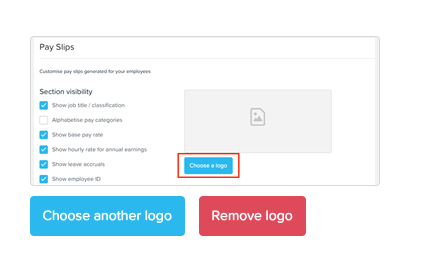

In Ezipay you may wish to personalise your Payslips with a company logo. To do this, follow the instructions below.
In the dashboard, click on 'Payroll Settings'.

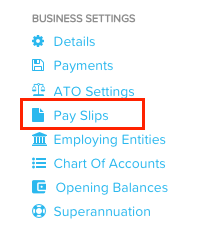
Under 'Business Settings', click on 'Pay Slips'.
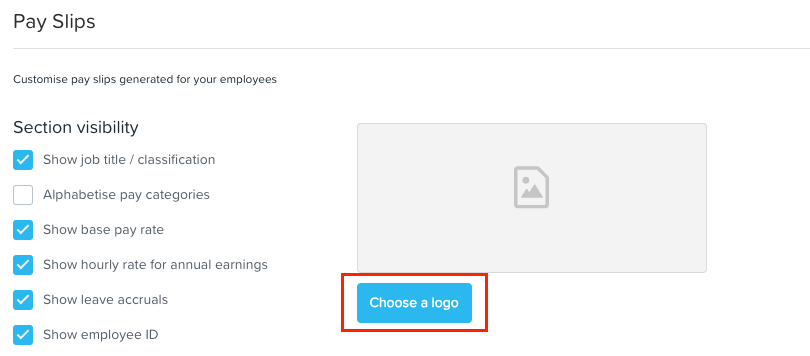
Click on 'Choose a logo'.
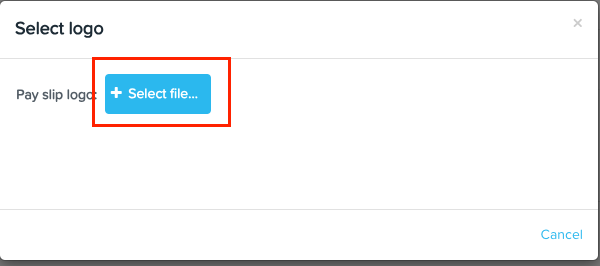
Click on 'Select File'. You will be prompted to locate the logo file from your device.
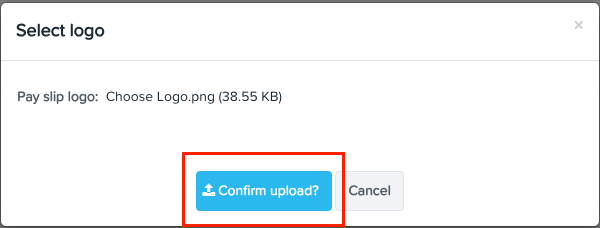
Once you have selected the logo, click on 'Confirm upload' to upload; click 'Cancel' to discontinue.
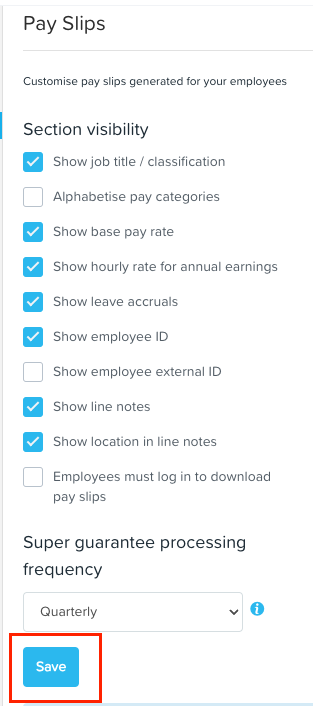
Click 'Save' to save the changes that were made. You are all set!
You can also remove or replace the existing logo by clicking on 'Choose another logo' or 'Remove logo'.