
1. Setting up Passkeys.
Log in to Ezipay.
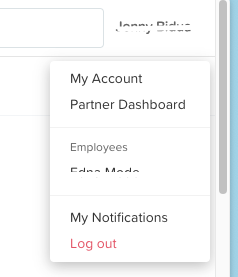
Click on your name in the top-right corner, then select My Account.
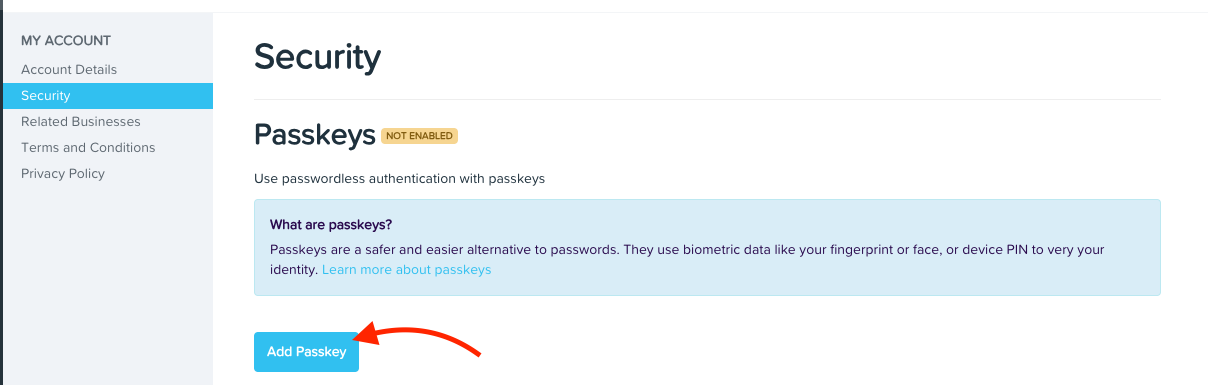
Click on Security. Under Passkeys, select Add Passkey.
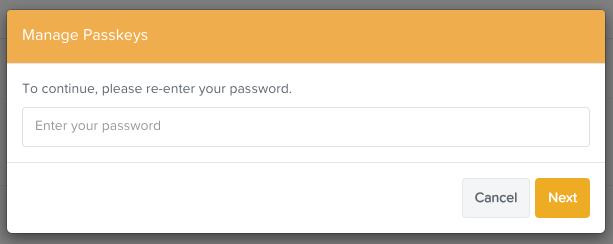
Re-enter your account password.
Choose where to save your passkey.
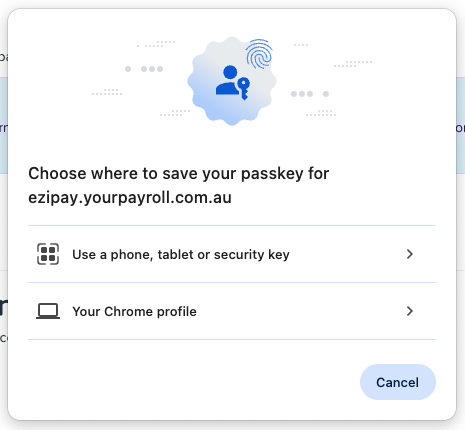
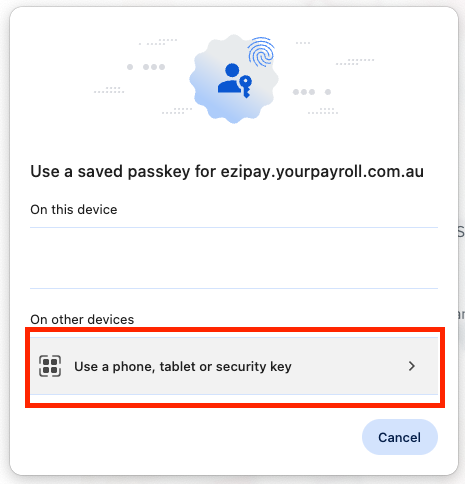
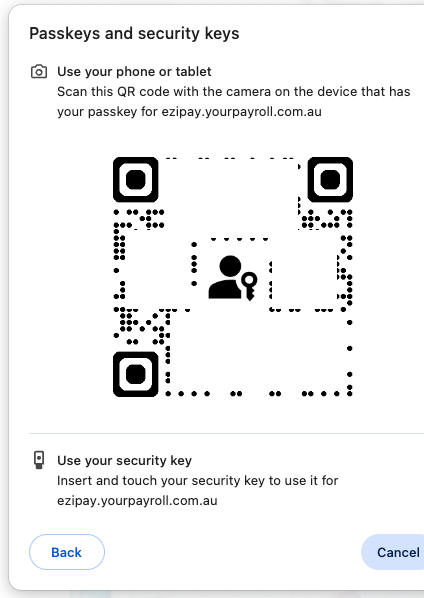
Use a phone, tablet or security key. This option lets you scan a QR code. Your device’s password manager will open and add the passkey to your account.
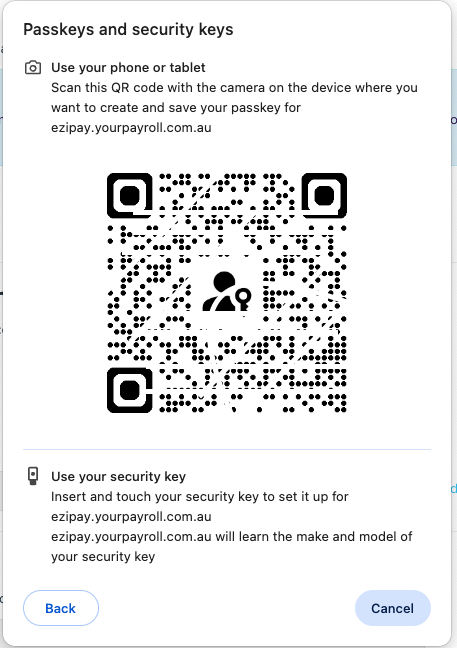
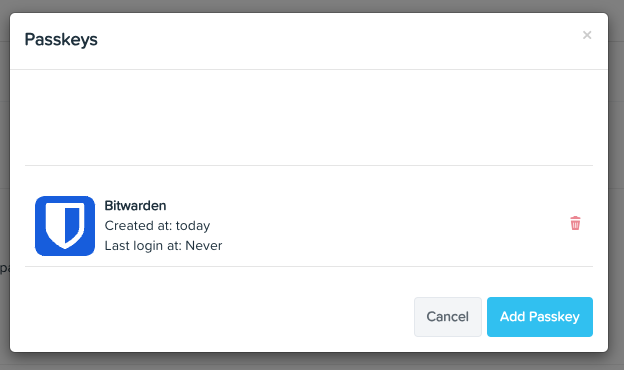
Example: Bitwarden (password manager) was used to scan the QR code in the example below.
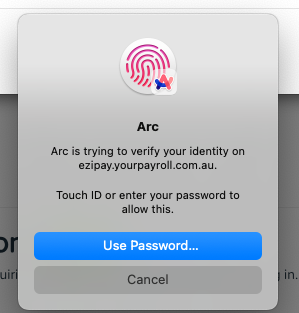
Your browser profile: You will be prompted to enter your password.
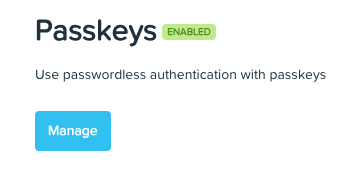
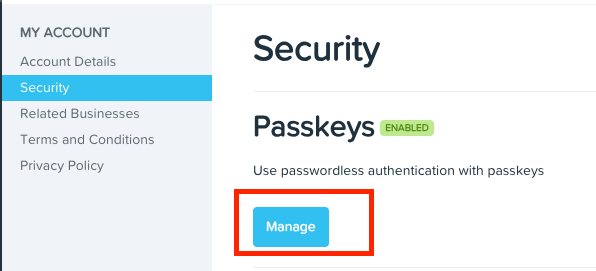
Once the passkey is added, you will see the word Enabled highlighted in green.
2. Logging in with Passkeys
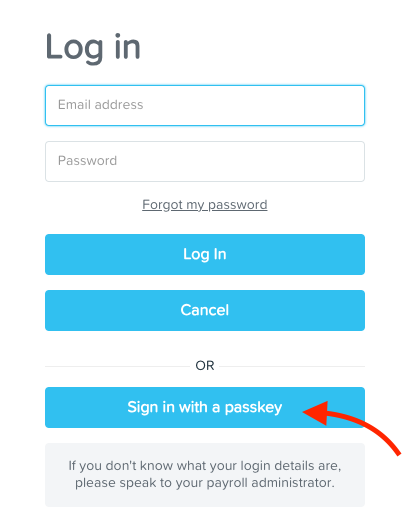
On your login screen, click Sign in with a passkey.
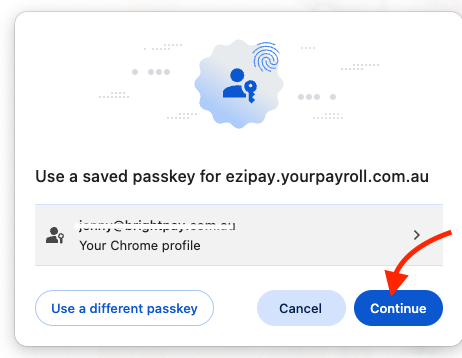
Using your browser - Click Continue.
Using your device. Scan the qr code and follow the steps in your device.
3. Removing Passkeys
Click Manage under Passkeys.
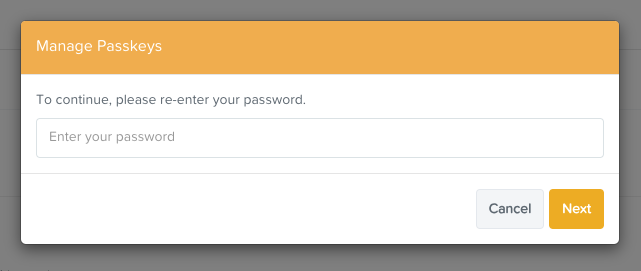
Re-enter your password.
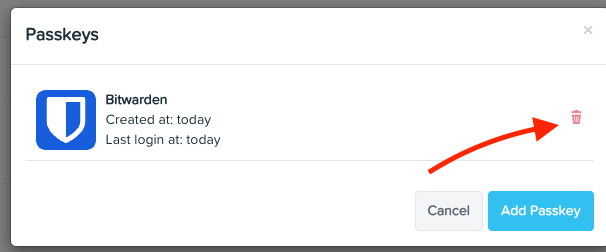
Click on the trash bin icon.
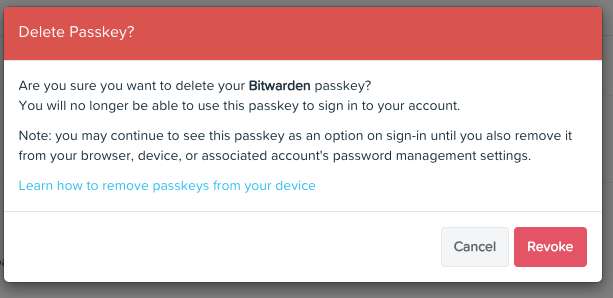
A confirmation prompt will appear. Click Revoke.