

This article explains how to manage and pay contractors within Ezipay. This new feature streamlines the process of adding contractors to the payroll platform, ensuring efficient and accurate payments for independent workers. With this update, organisations can seamlessly include contractors alongside employees, making it easier than ever to manage payments.
The addition of contractor management and payment functionality simplifies payroll processes for businesses that engage contractors. This new feature is designed to enhance operational efficiency and ensure compliance with payment and tax withholding. We look forward to seeing how this feature supports your business and streamlines your operations.
Key features and benefits
Easy Contractor Addition
Employers can now easily add contractors using the new Contractor wizard. No need to manage contractors separately in third-party tools or spreadsheets.
Automatic tax withholding (if applicable)
For contractors who require tax withholding, the platform automatically calculates and applies the appropriate deductions, ensuring compliance with relevant tax regulations.
Super payment (if applicable)
For contractors who may require Superannuation Guarantee payments, the platform automatically calculates and applies the appropriate Super Guarantee amount! Contractors can be added to automatic super payments through our Beam integration, or via manual super batches.
Payment history and reports
Basic payroll reports are available for tracking contractor compensation, tax withholdings, and other financial details.
New pay category and setting
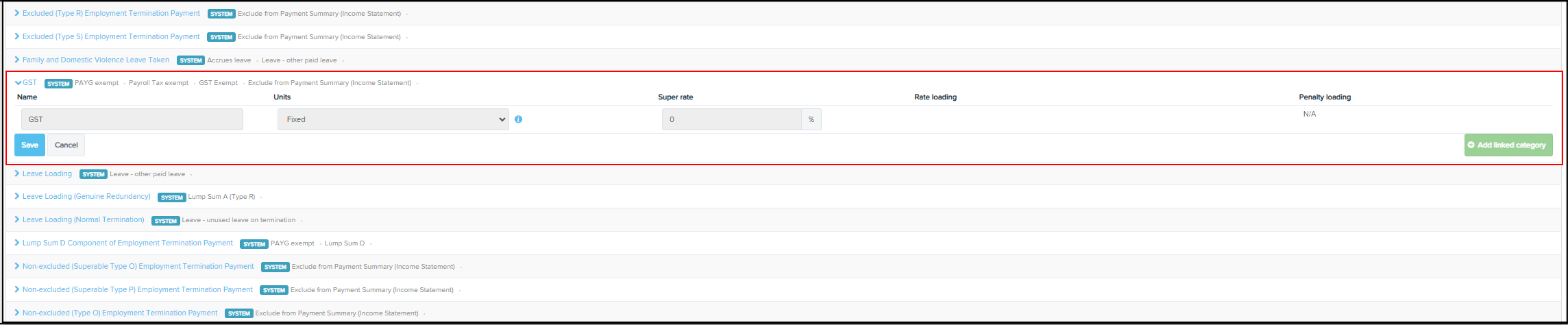
A new platform pay category GST has been added to automatically calculate GST on Contractor payments. A new GST Exempt setting has also been added to new and existing Pay Categories to exclude the automated calculation of GST where required.
How it works
1. Pay Categories
A new platform pay category GST will automatically be added to your business' Pay Categories list. You can set up Contractor pay categories using the + Add button on the Pay Categories page.
When adding a new pay category, you will be able to select all existing available options, as well as a new option to set the pay category to be GST Exempt.

2. Adding a contractor
Add a contractor using the new Contractor wizard using the below steps.
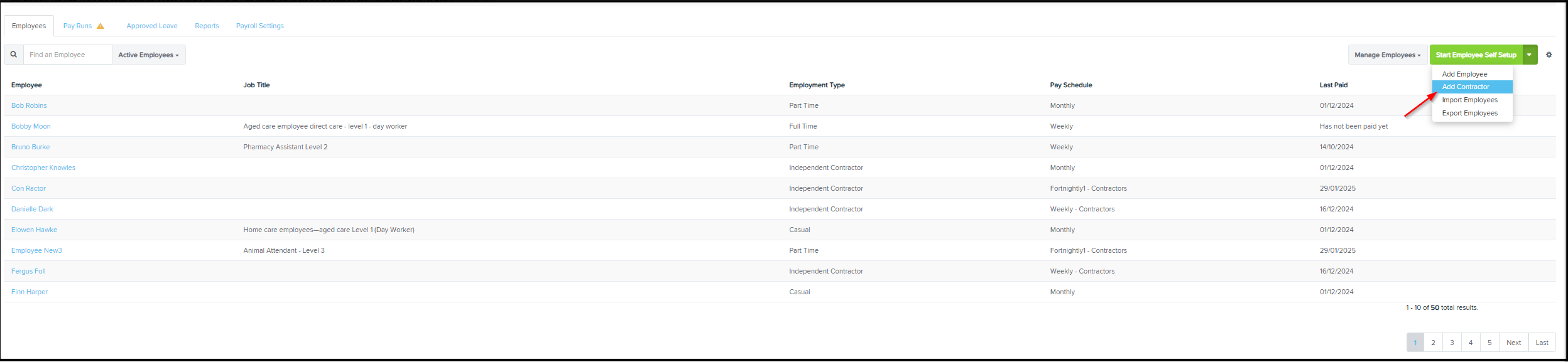
There are two ways you can add a Contractor: From the main business dashboard, select Add Contractor from the drop-down menu:
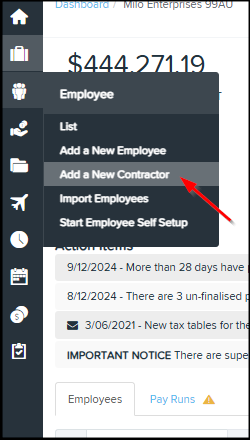
From the left navigation menu, hover over ‘Employees’ and select Add Contractor from the menu:
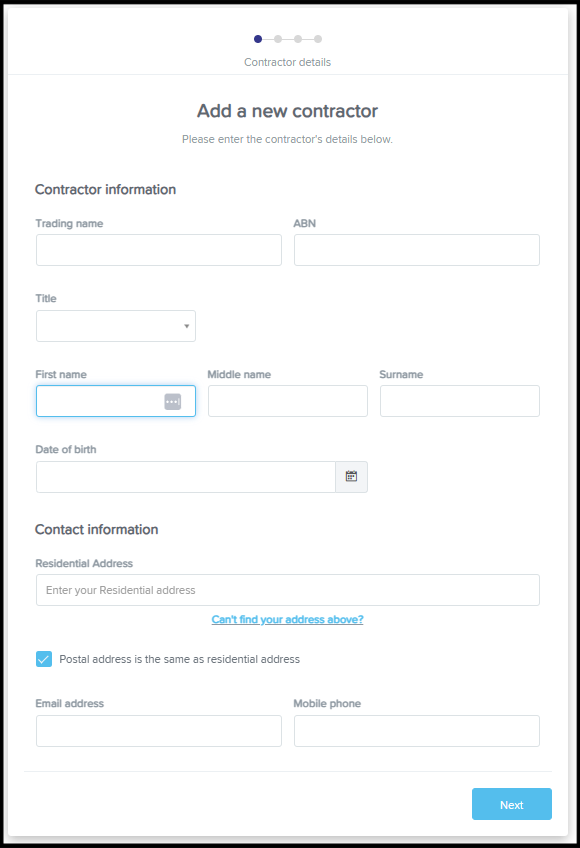
Once selected, the Contractor wizard will appear. Here you will be able to enter the following information:
Contractor Details
Trading Name
ABN
Title
First, Middle and Surname
Date of Birth: please note, date of birth is a required field for superannuation payments
Residential and postal address Email address and phone number
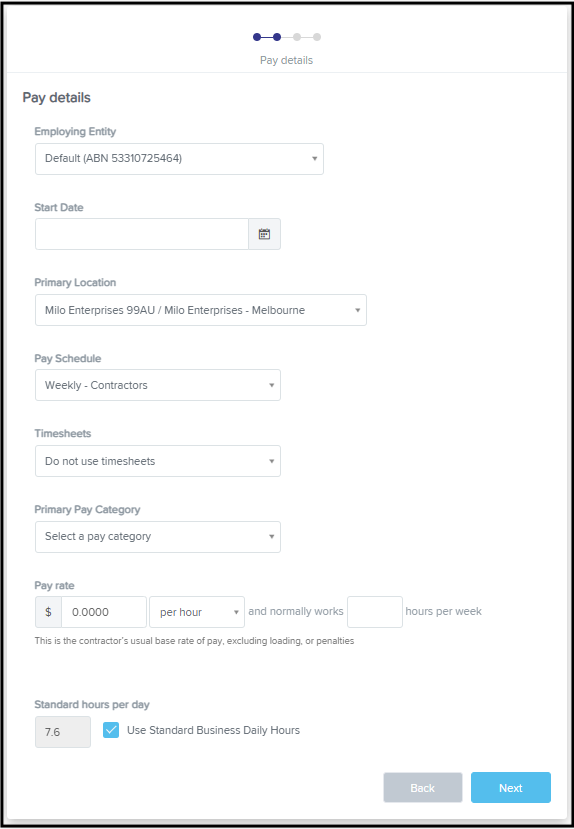
Pay Details
Employing Entity (if applicable)
Start Date
Primary Location
Pay Schedule
Timesheets
Primary Pay Category
Pay rate
Standard hours per day
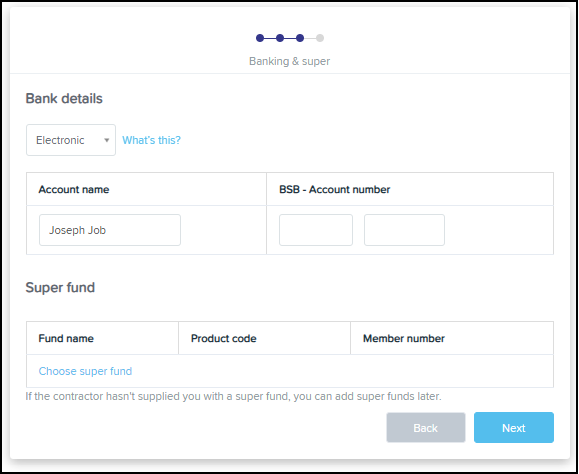
Banking & Super
Bank details
Super fund
Tax File Number: this is not a required field, however may be beneficial for reporting purposes if you withhold any tax from the contractor
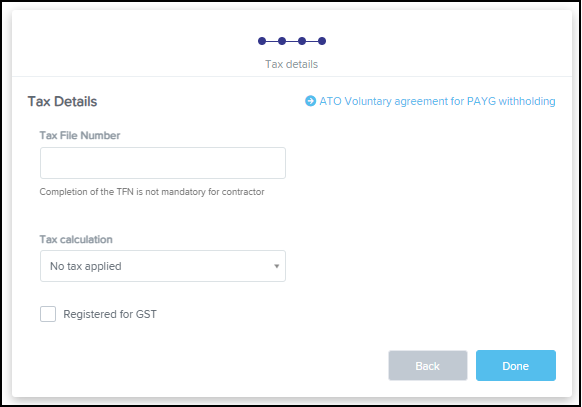
Tax Calculation: the below options are available for selection No ABN quoted: the top withholding rate of 47% will apply to payments over $75 (excluding GST) Voluntary agreement: where you and the contractor have entered into a voluntary withholding agreement. When this option is selected, the Commissioner Instalment Rate (CIR) box will appear. The contractor should give you their CIR % to be entered.
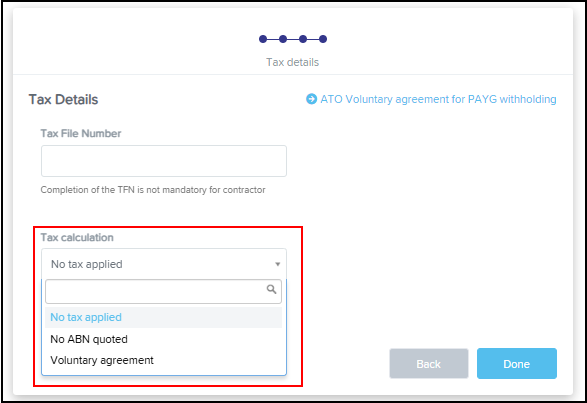
No tax applied: where the contractor is responsible for their own tax withholding and reporting
No ABN quoted: the top withholding rate of 47% will apply to payments over $75 (excluding GST)
Voluntary agreement: where you and the contractor have entered into a voluntary withholding agreement. When this option is selected, the Commissioner Instalment rate (CIR) box will appear. The contractor should give you their CIR % to be entered.
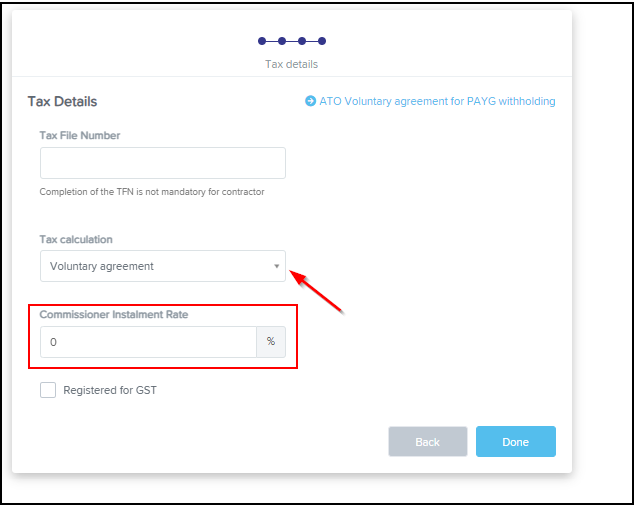
Registered for GST: by selecting this option, 10% GST calculation will apply to contractor payments where GST Exempt has not been selected on the pay category settings Once the above details have been entered, you can navigate to the Contractor's profile, create a new contractor, or go to your business dashboard by selecting Home.
3. Business dashboard and employee list
Once a contractor has been added, they will display in the Employee list of your business, and display with the details entered in their First and Last Name fields. Contractors will appear on your business dashboard under the Employee tab and will display with the details entered in the First and Last Name fields and will have an Employment Type - Independent Contractor.
4. Contractor Profile
You can access a contractors profile either via the Employees tab on your business dashboard, through the Employees Employee list or via the Search bar in the top right hand corner. Within the Contractor profile, the below options will be available:
Emergency Contacts
Tax Details
Opening Balances:
Earnings, Deductions, Employer Liabilities and Super & PAYG options will be available within Contractor’s profile.
Pay Rates
Locations
Pay Run Inclusions
Bank Accounts
Super Funds
Qualifications
Work Types
Contractor Management
Pay Slips
Documents
5. Deactivating a contractor
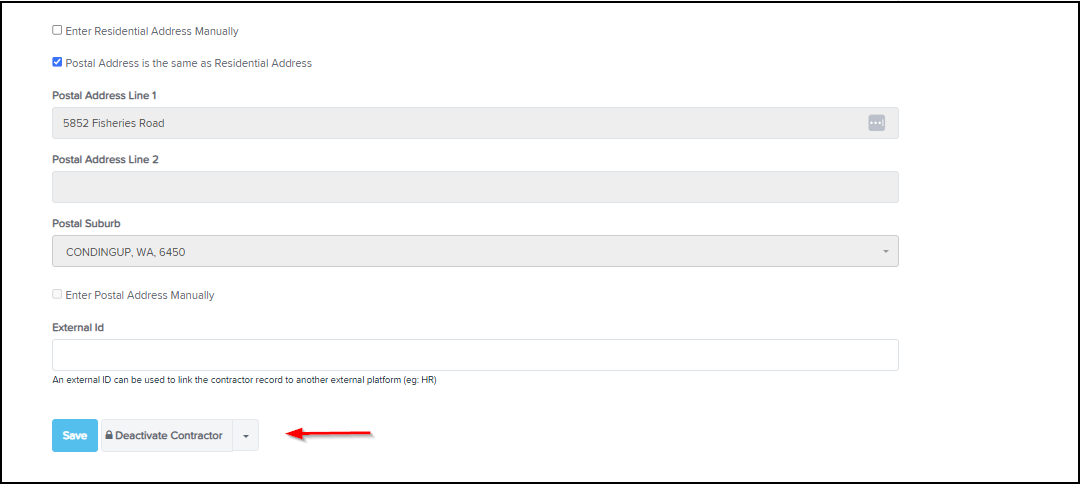
You can deactivate a contractor via their profile. Contractor deactivation will not be available within a pay run. Navigate to the Contractor you wish to deactivate, at the bottom of their details page, select Deactivate.
6. Pay schedule and pay run
Contractors can be added to any of your existing pay schedules, or you can create a new pay schedule to pay Contractors as needed. You can utilise the existing pay schedule setting Included Employees – Employees with this pay schedule as their default.
7. Report
Contractors and payments to contractors made within a pay run will appear within the existing payroll reports. Contractor personal and pay details will appear in the existing employee reports.
Current limitations
Contractor Self Setup & Import: self set up and import options are currently unavailable. You can add contractors using the contractor wizard as per instructions above. STP/ATO Reporting: Contractors are not included in STP or other ATO reporting requirements.