

Let's begin by locating the employee from your Ezipay dashboard. To do this, you may type the employee's name in the Find an Employee search bar
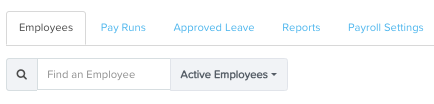
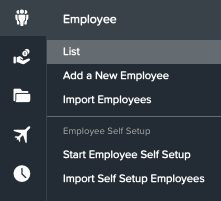
or click the people icon on the left side on the panel and select List. Both options will take you to the Search for Employee bar
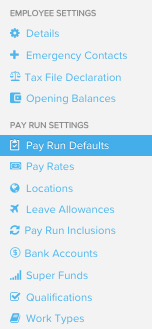
Within the Employees profile, select Pay Run Defaults
From here click Advanced and hit Edit to enter Weekly hours contracted for the employee
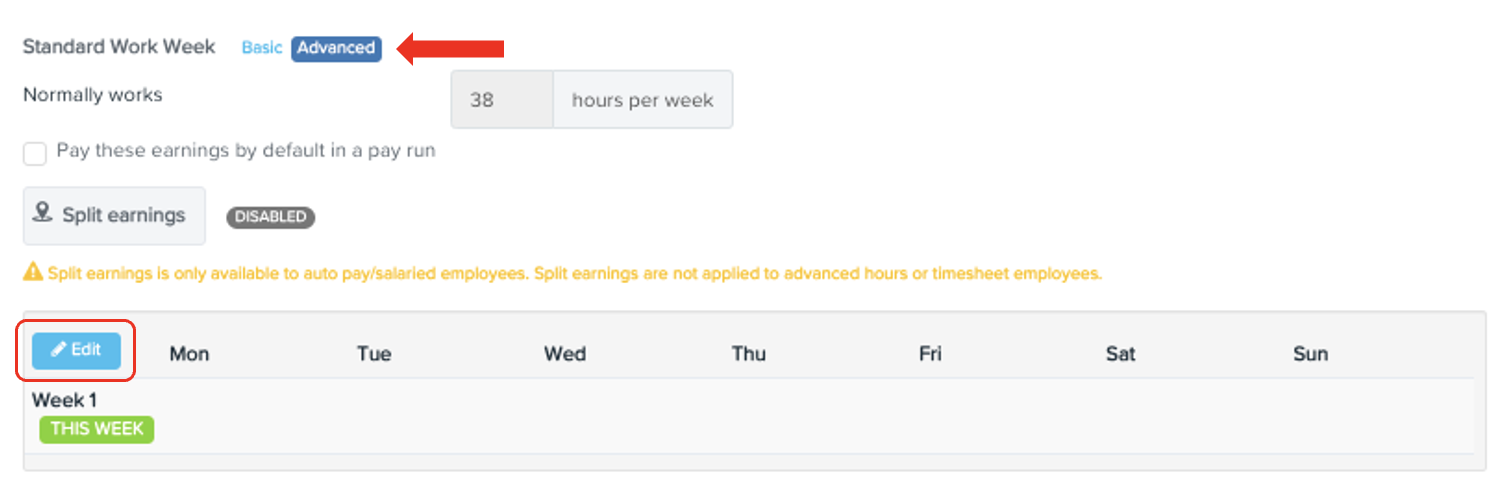
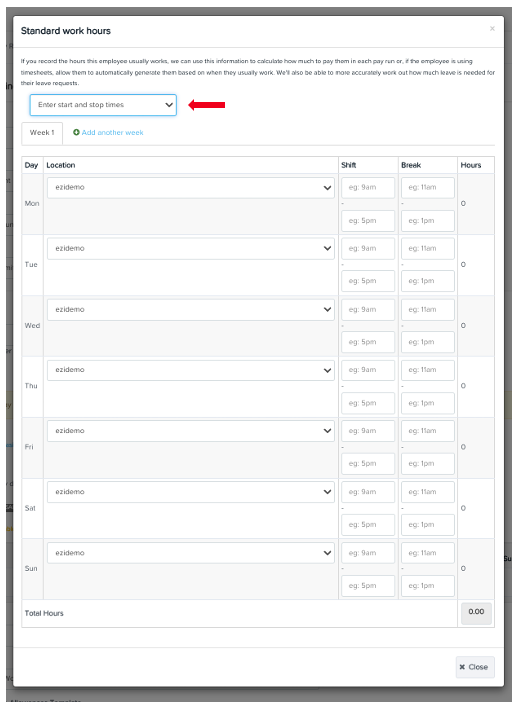
this should open up the Standard Work Hours page. If there is a specific hours per day of the week indicated in the contract, select Enter start and Stop times and choose the shift times including the break times. Total hours entered should be tallied accordingly
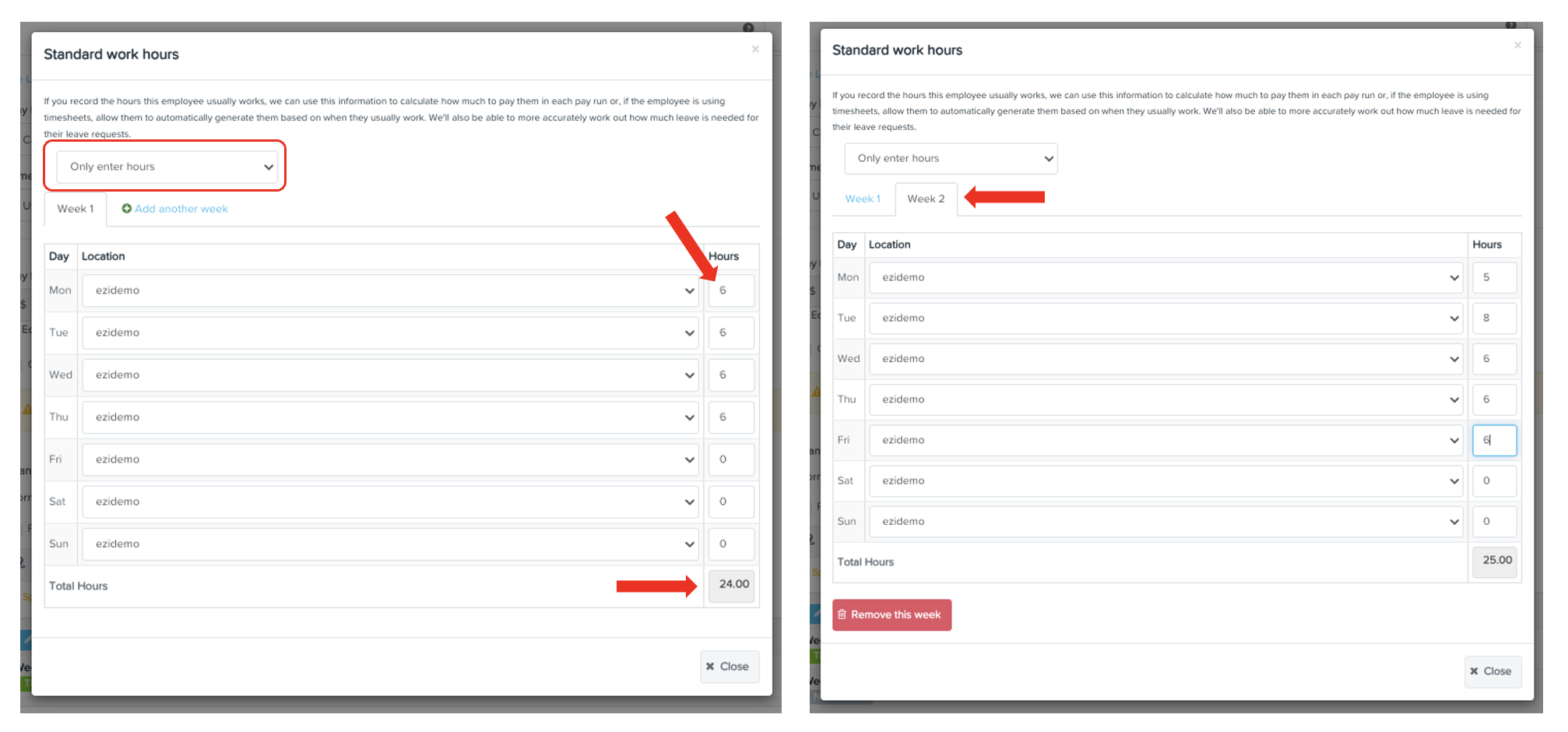
If you only need to record the total number of hours per day, you may select Only enter hours option then click Add another week to enter your required hours for the following week. Once done, hit Close
Hit Save at at the bottom for the changes to take affect
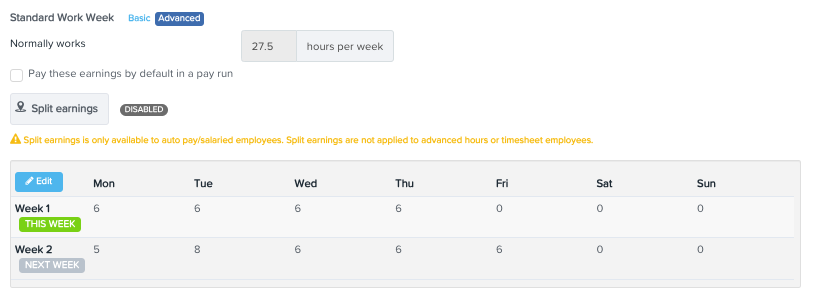
And that is how you input hours for part time staff in Ezipay!