

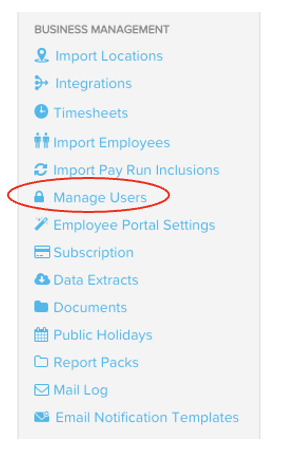
From your Payroll Settings, navigate to Business Management and click Manage Users
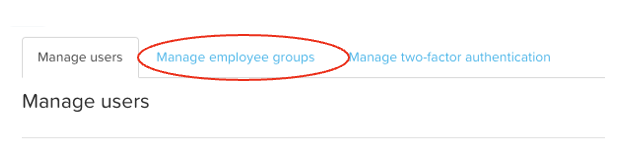
and select Manage Employee Groups
Click the green +Create button
and a window on the right side will appear where you are able to name the Employee Group, select certain criteria. Say for example you want to create a group of a certain Employment Type, option from the box will appear where you may choose employees that are contracted full time, casual, part-time, etc... The system will automatically filter out matching employees.
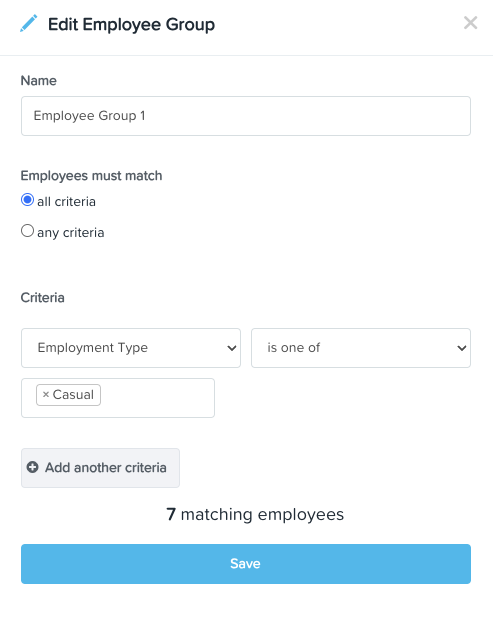
Click Save once done and the group will now appear on your Employee Groups list.
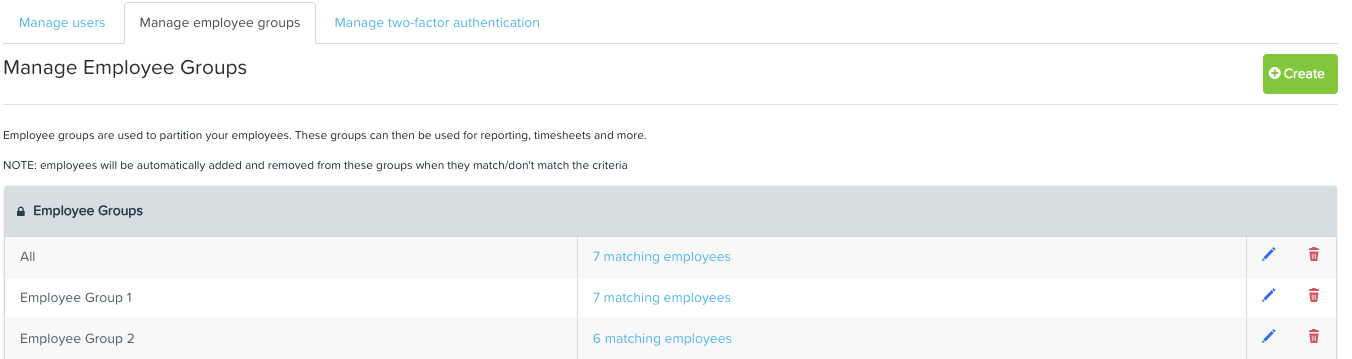
To edit the Employee Group, simply click the pencil icon and the same window will appear with the current criteria. You may add or remove options as necessary. To delete an Employee Group, click the garbage button. Click Save once done.