

Entering your leave request
Employee Portal
To apply for leave through the Employee Self Service Portal you simply need to click the 'leave' icon on the left side of the page before clicking on 'Apply for Leave'.
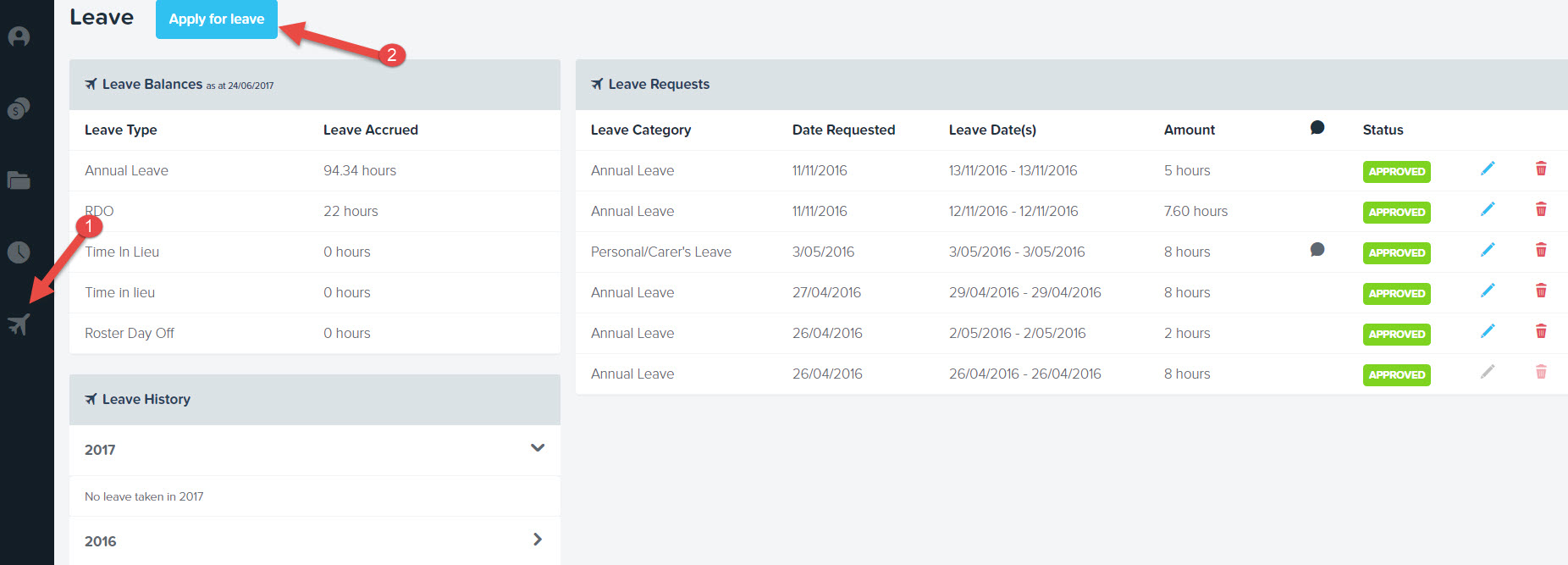
From here, a dialog box will appear that requires you to enter the following details:
Leave category: Available leave categories can be selected from the drop down. Leave categories included here are ones that the employee has access to;
First/last day of leave;
Leave required: Units required for the leave, expressed as either days, hours or weeks, depending on how the unit type of the leave category has been set up. This is an editable field and can be overridden by the employee, although the system will enter a figure based on either the business standard work hours, or another figure specific to the employee if they have advanced work hours set up;
Available balance: Indicates the amount of leave you have available, NOT including approved leave;
Leave balance: Indicates the amount of leave you have available INCLUDING approved leave;
Approved leave: Indicates the amount of leave that has been approved (but not yet taken) for you;
Notes: You can enter any notes that they think is relevant to the leave request. Your employer may have made entering this field compulsory.
Attachment: You can attach a document (such as medical certificate) which can then be viewed by a manager when the leave request is submitted.
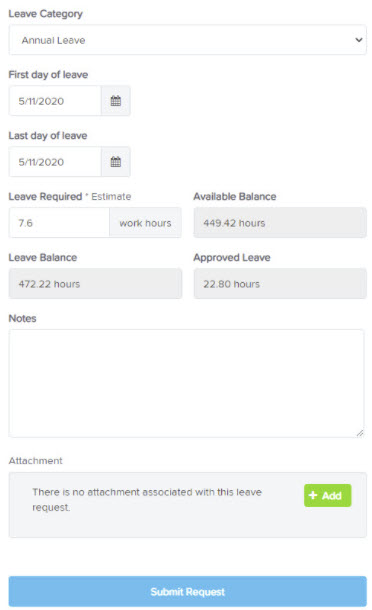
Once you select the type of leave that you require you will see further information about the available balance for the leave that you have selected. It will show the available balance, taking into account any approved future leave. If you have other leave requests that have been approved in the future, they will be displayed in the Approved Leave field.
Hovering your mouse over the *Estimate text will show you a breakdown of how the total hours estimate was reached.
Once submitted the status of your leave request will immediately show as Pending. If you’ve attached a document, a paper clip will show, if you’ve added notes to your leave request, a talk bubble will also show.
Your manager, or person required to authorise your leave request will receive an email notifying them of the outstanding leave request awaiting their approval. Once the authorised person has actioned your leave request, you will receive an email notifying you of its status.
EH Work App
You are able to request leave straight from your Smartphone, including the ability to attach a supporting document just by using your Smartphone’s camera.
If you haven’t already, you can download EH Work app: