

Leave Management
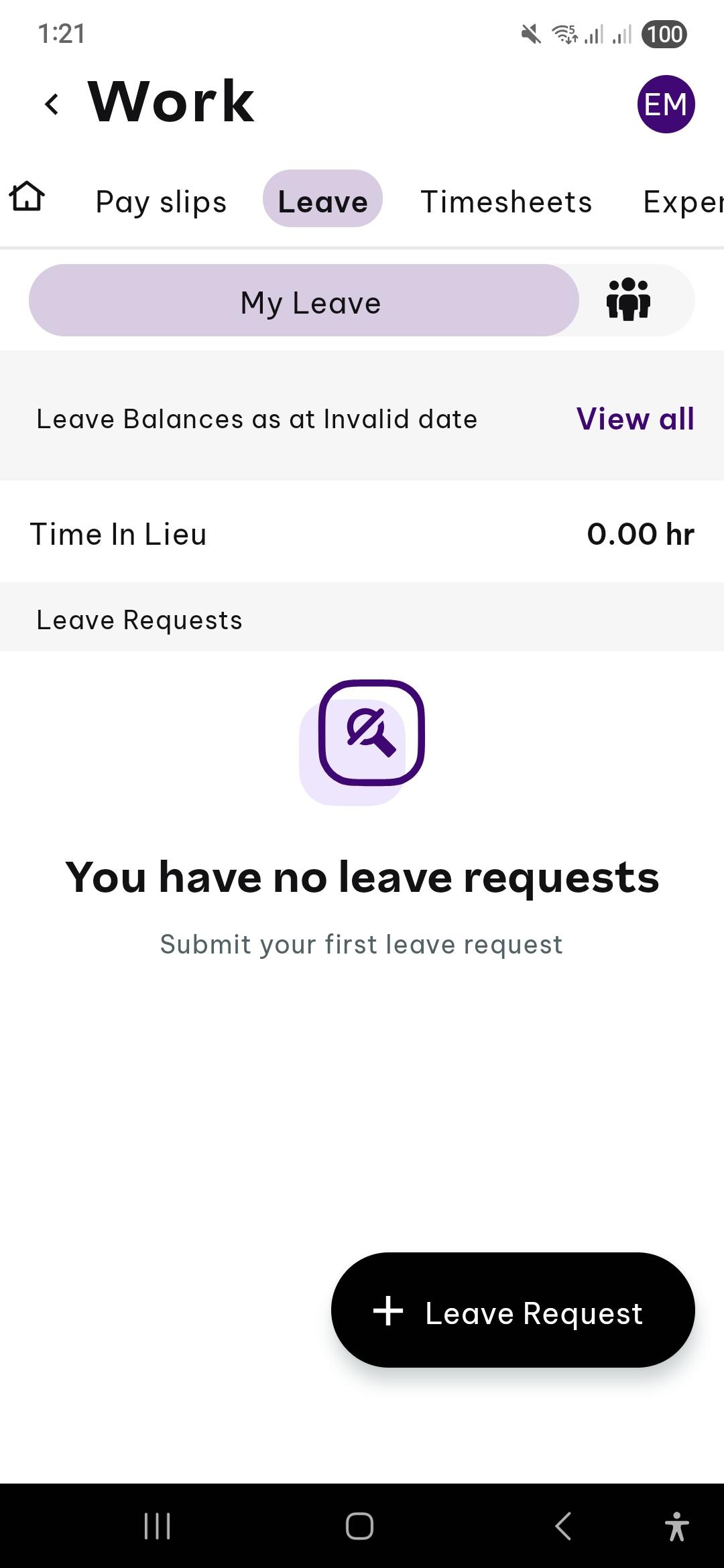
How do I view my Leave Allowance?
Log in to the Employment Hero Work app.
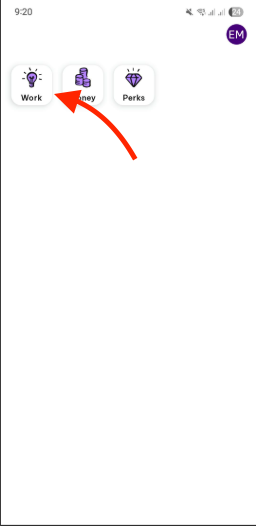
Tap the Work icon.
Scroll down until you see the heading My Leave, below which you'll see your current Leave Allowance.
How do I request leave?
Log in to the Employment Hero Work app.
Tap the Work icon.
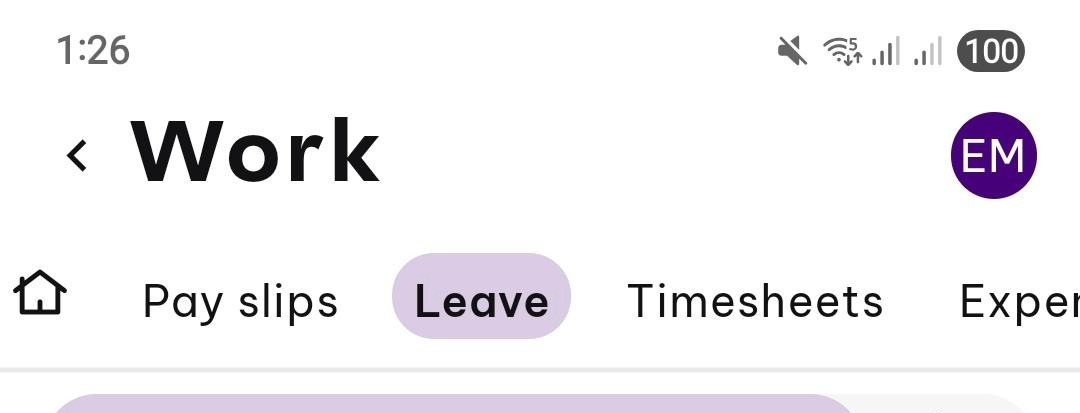
Tap Leave on the horizontal, scrollable menu at the top of the screen.
Tap Leave Request.
Tap Leave category on the Leave Request form.
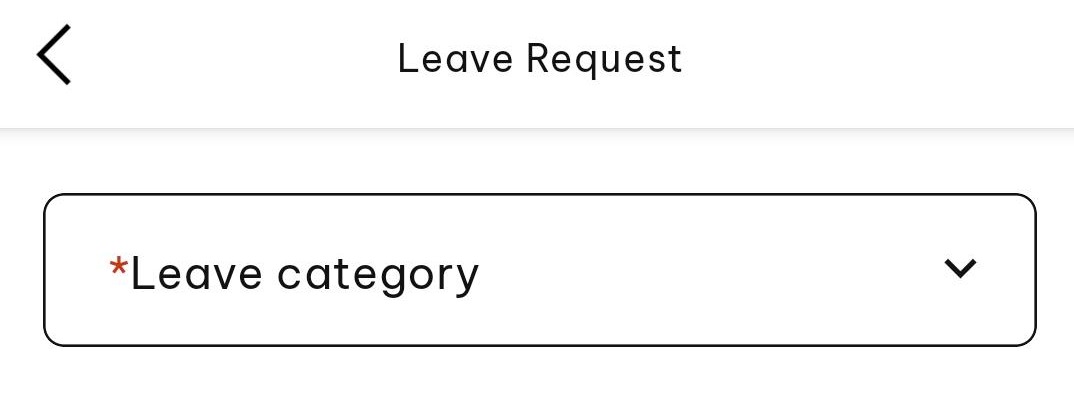
You will now see a Leave category dialogue, which includes the following eight buttons to choose from. Tap whichever one of the following applies:
Annual Leave
Long Service Leave
New leave cat
RDO
test leave balance
Test Standard Day
Unpaid Pandemic Leave
Weeks New
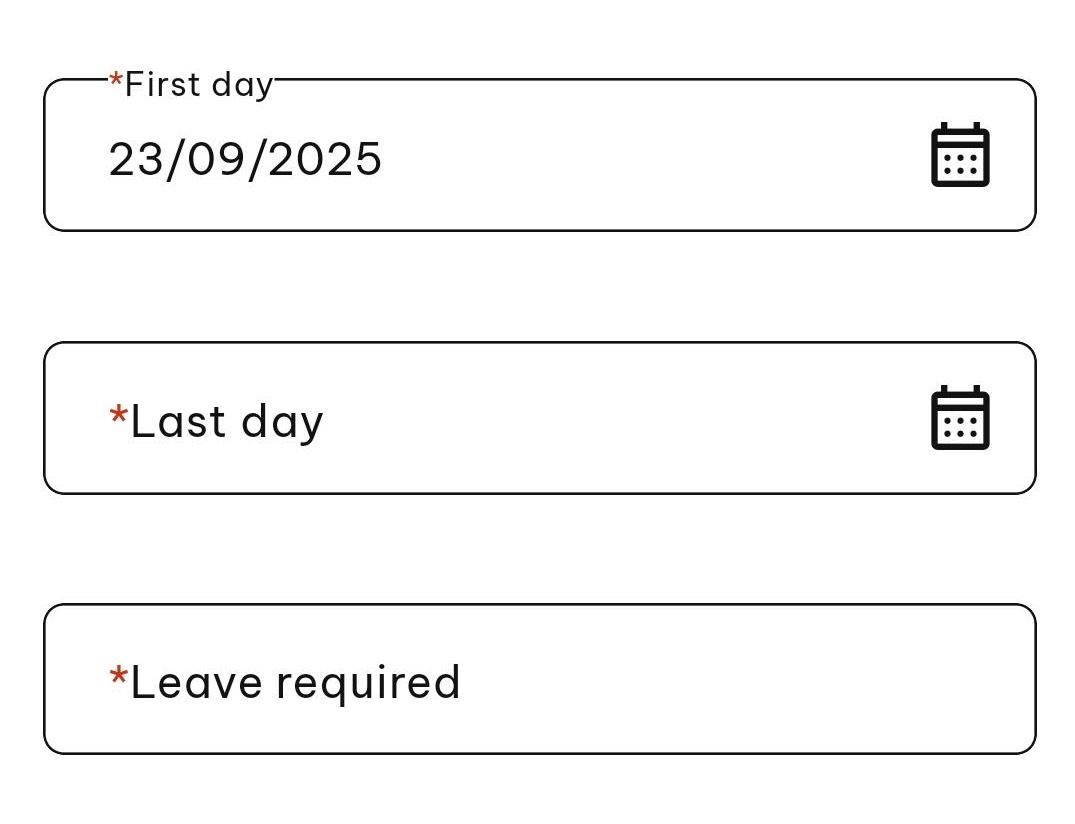
Use the calendar to tap the Start and then End dates of your leave request.
You can click Modify hours to change the request on an hourly basis, for example if you want to take a half day.
The Total hours will be displayed.
Optional: Add a comment for the manager who will receive your request.
Optional: Add attachment if required. You will be given the opportunity to add an image, file or take a picture.

Tap Submit.

Edit Leave Requests
Log into the EH Work application.
Select Leave from the top menu.
Toggle to select Leave Management.
Once located, tap to open the request you want.
You can only edit a leave request before it has been applied or only part applied in a pay run. Fully applied leave can not be amended.
If the request is pending it may be easily found on the leave management homepage, otherwise you may need to search for it.
For pending or approved leave requests, you can edit any of the fields.
Tap Save.
Cancel Leave Requests
Log into the EH Work application.
Select Leave from the top menu.
Toggle to select Leave Management.
If the request is pending, it may be easily found on the leave management homepage. Otherwise you may need to search for it.
Tap to open the request
Select Cancel leave request.
You are asked “Are you sure?”. Select Yes to confirm or No to return to the open leave request.