
EH Work App
In EH Work, your personal & contact details, your residential & postal addresses, as well as your emergency contacts can be viewed and edited (if you have relevant permissions to do so). Your bank account/s and super fund details can only be viewed in read-only format. If you do need to make any adjustments to your bank account/s or super fund details and your payroll administrator has given such permission, you can do this via your Employee Self Service Portal (using the same log in details you do for EH Work). Alternatively, you will need to contact your manager or payroll administrator to make these changes.
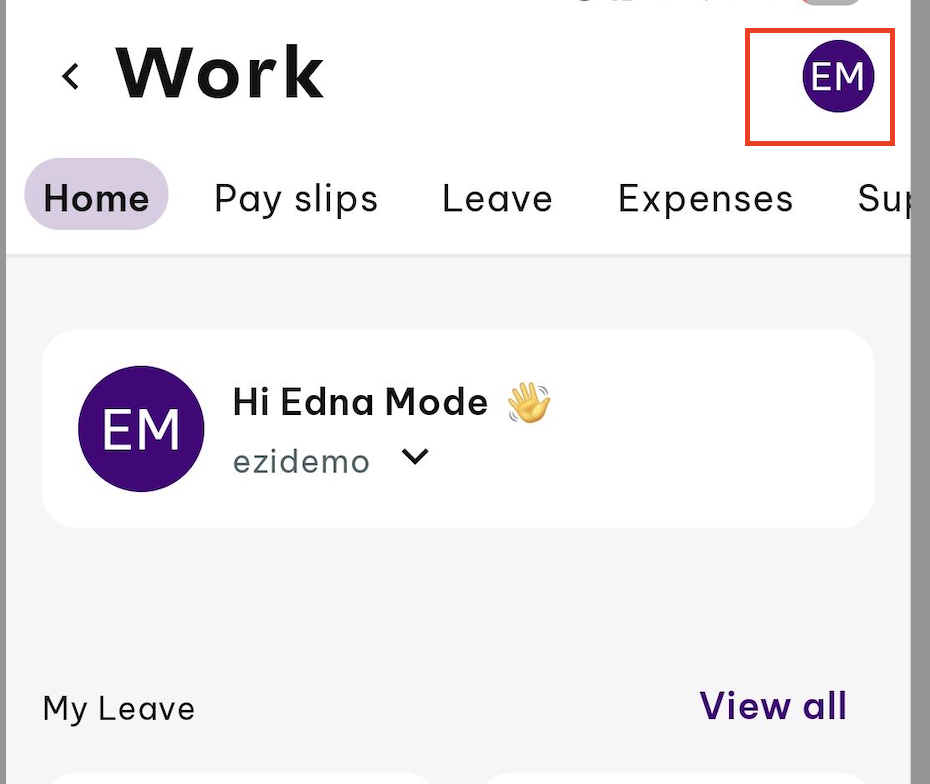
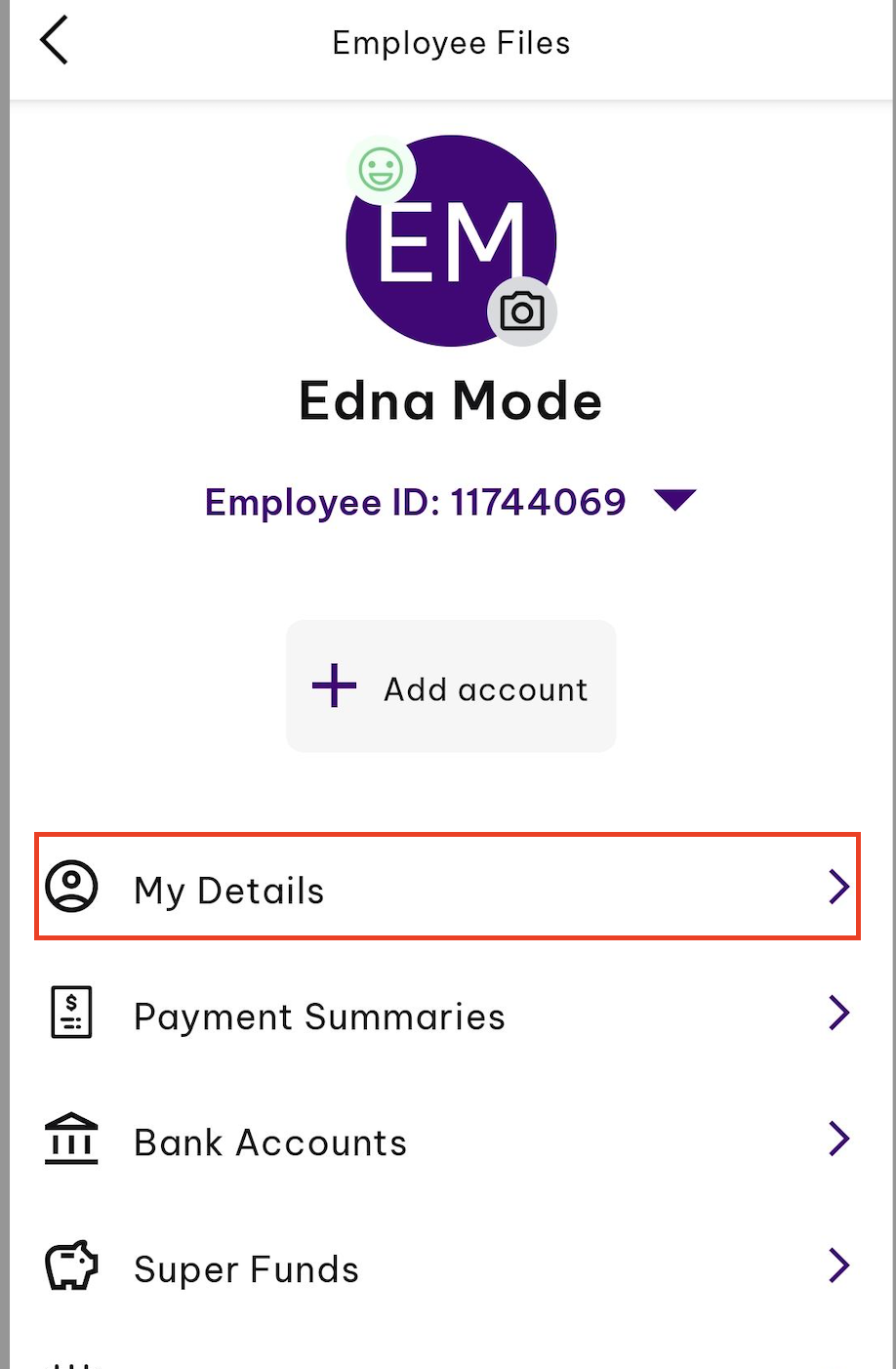
In order to view the above mentioned details, once you have logged in to EH Work you can tap on the 'Profile' icon at the top of the screen, then click My Details:
My details
On this screen you will be able to view the following information (N.B. some of these fields may not be populated if they are not required or your administrator has not received the information):
Personal details;
Contact details;
Residential address;
Postal address
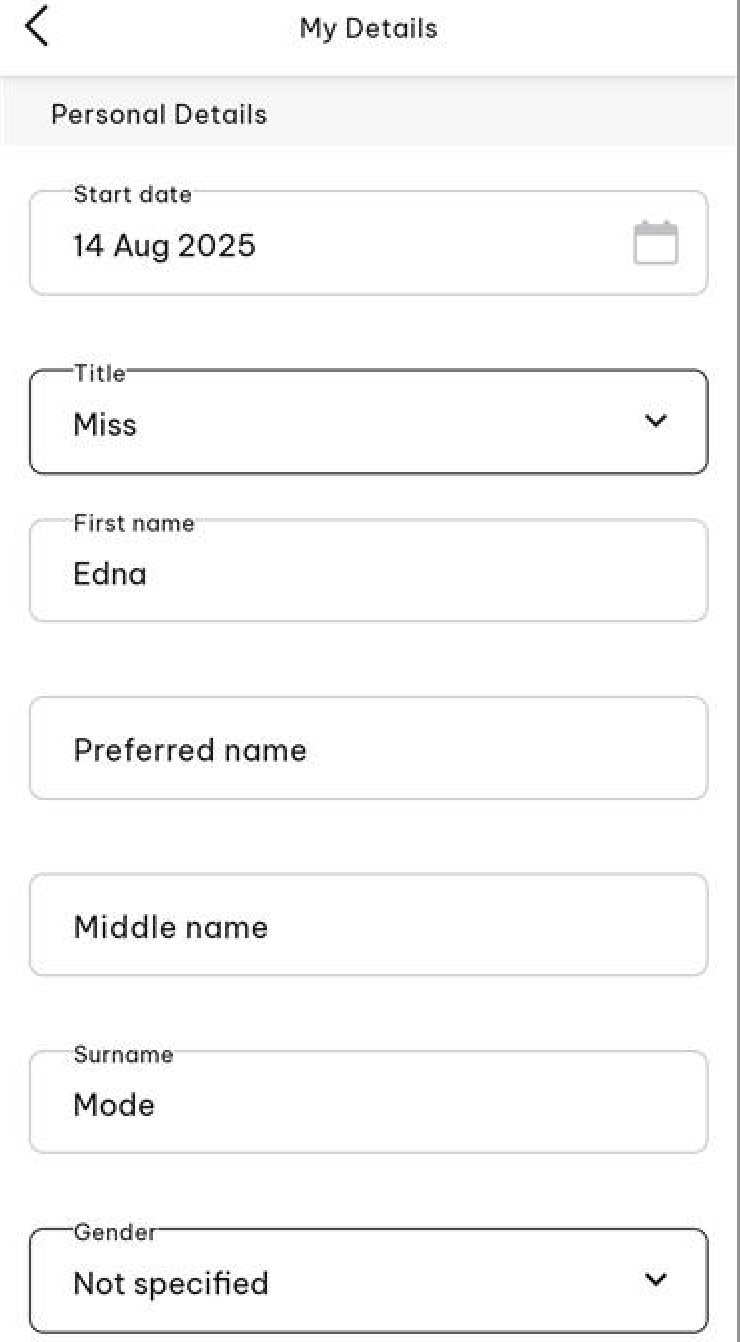
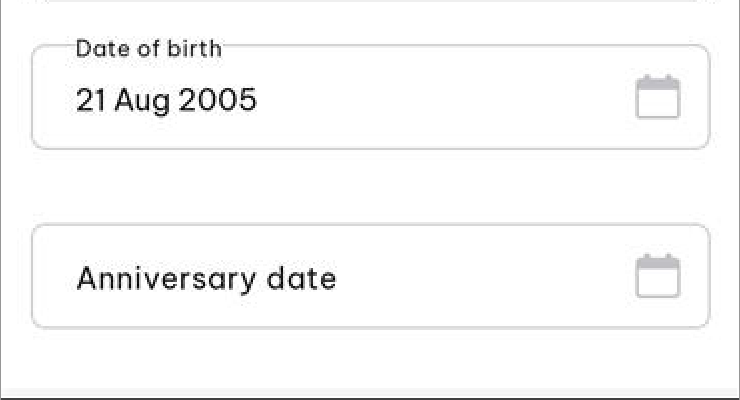
Personal details
This information is 'view only' except for 'title' and 'gender', which you can edit by tapping on the '>' icon next to the editable field:
Contact details
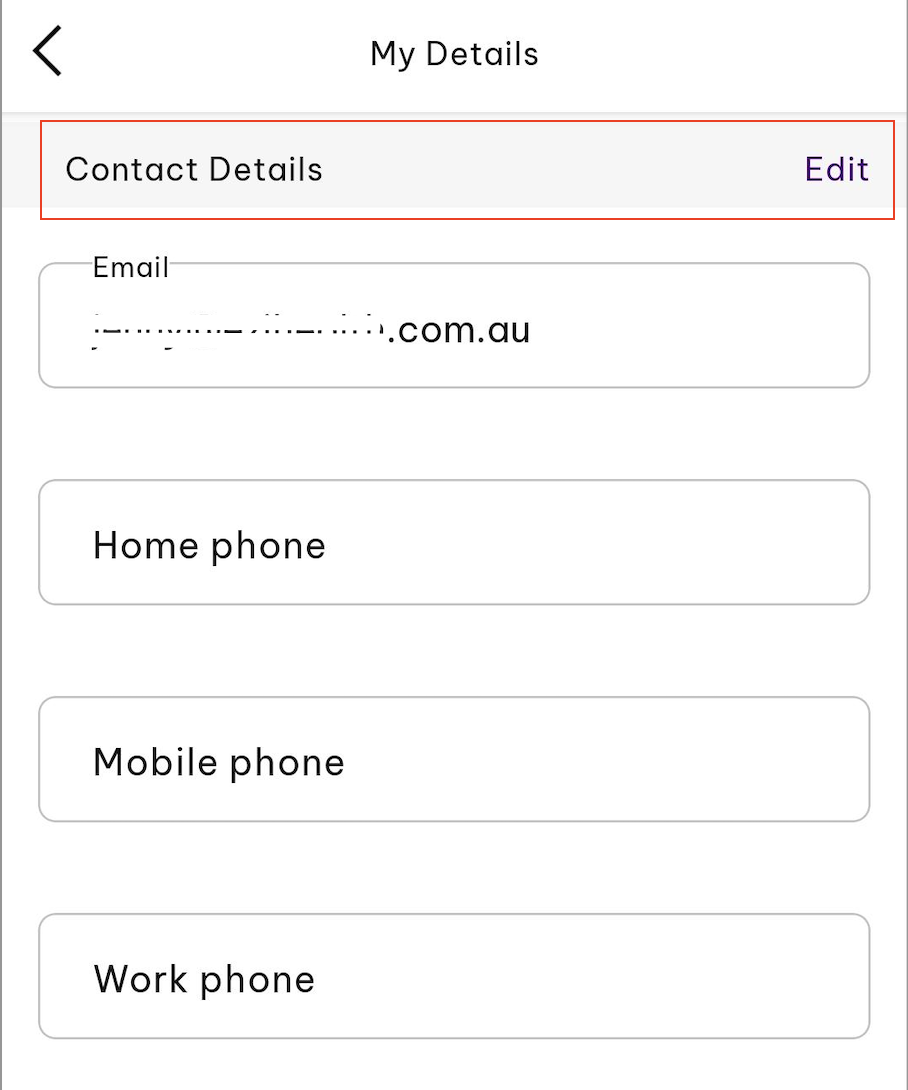
The following Contact Details fields can be edited by clicking on 'Edit' next to the Contact Details section.
Email;
Home Phone;
Mobile Phone;
Work Phone.
Residential & Postal address
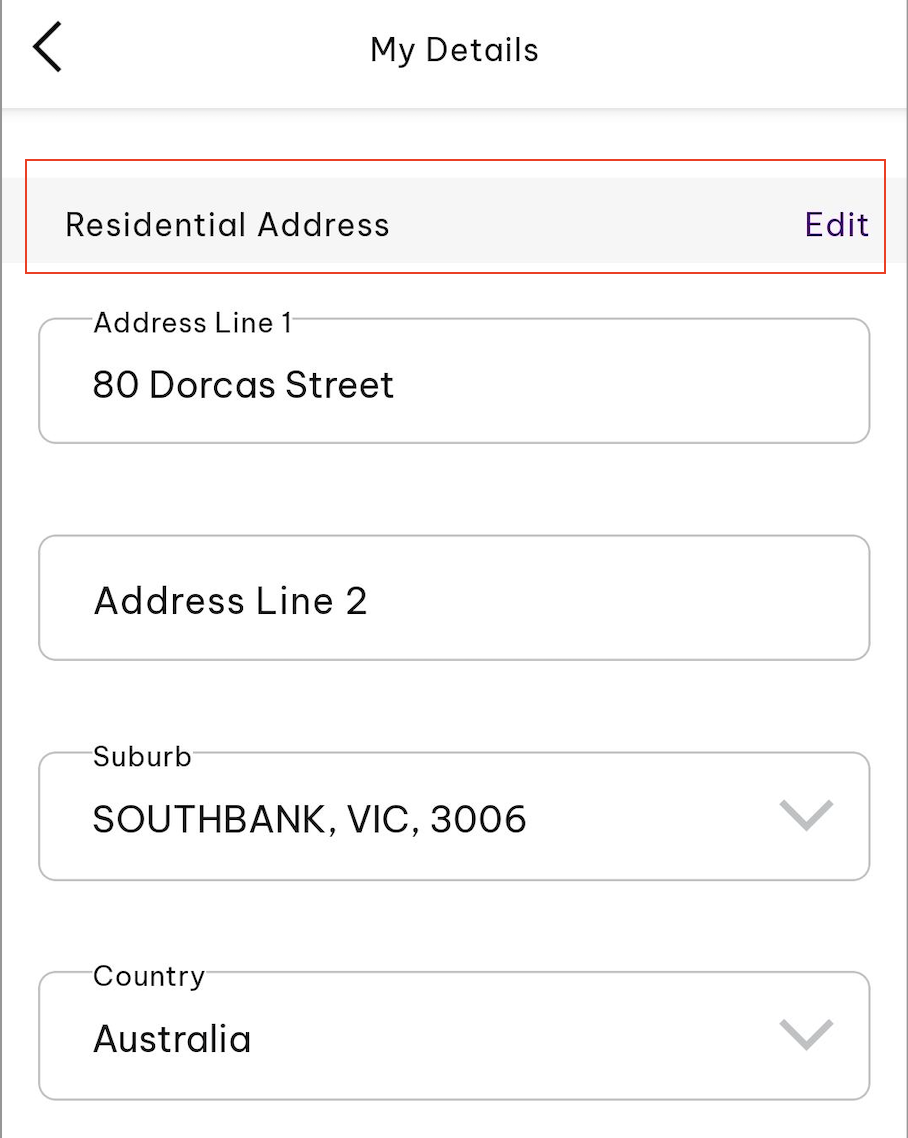
The following fields can be edited by clicking on 'Edit' next to the Residential Address section.
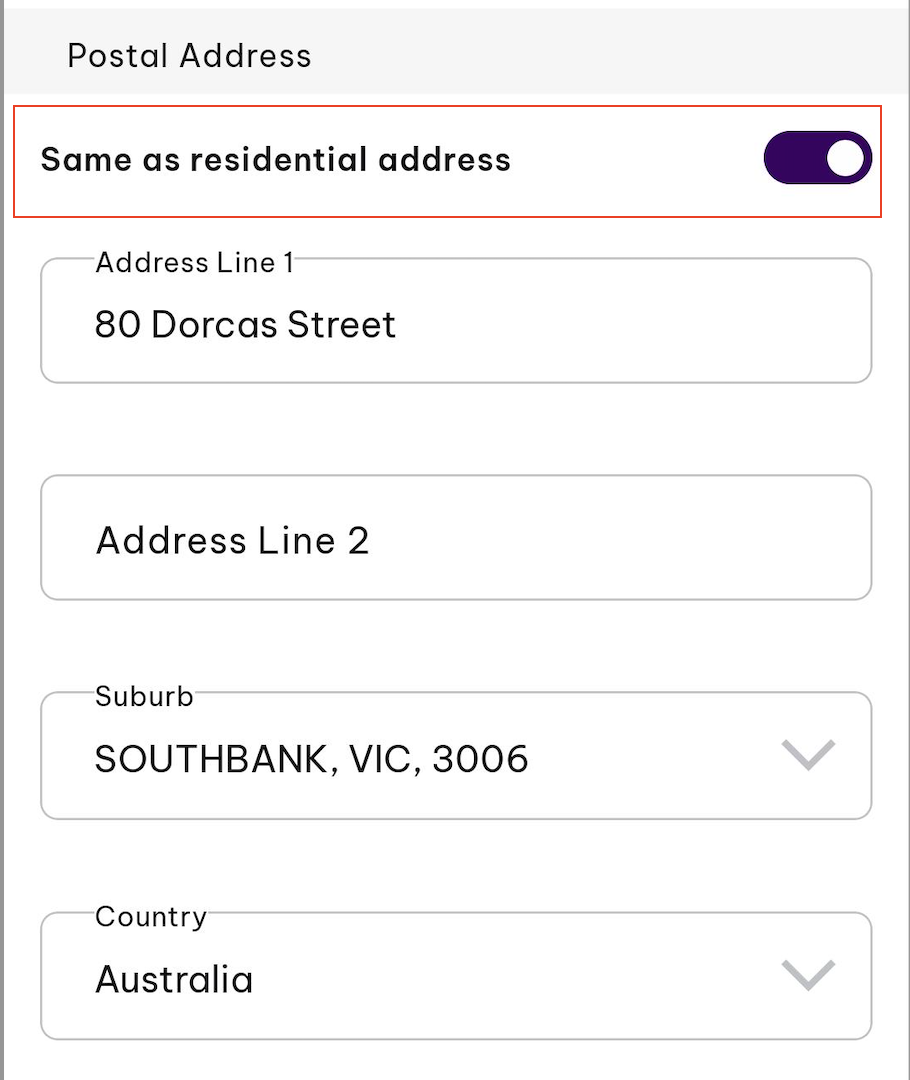
Address Line 1 - You can start typing and the system will start to pre-fill the address. There are 2 different options for how the pre-filled address can be applied to the employee’s address. The start of the address (the detail that would populate Line 1) can be used to populate ADDRESS LINE 1 ONLY or, the rest of the pre-filled address can be used to populate the ENTIRE ADDRESS;
Address Line 2 - free text;
Suburb - You can start typing and the system will start to pre-fill the suburb. There are 2 different options for how the pre-filled suburb can be applied to the employee’s address. Suburb name ONLY or suburb, postcode and state (if you select 'suburb only', you will be required to then enter the state and postcode as free text);
Country - You can start typing the name of the country and the system will find and pre-fill the country:
Hit on the Same as residential address toggle button if you have the same residential address as your postal. Otherwise, manually enter the details.
If a non-AU country is selected you will need to enter the address manually. The required fields are Address Line 1, City/Town, Province/State/County & Postcode.
Emergency Contacts
Select Emergency Contacts from the Employee files option.
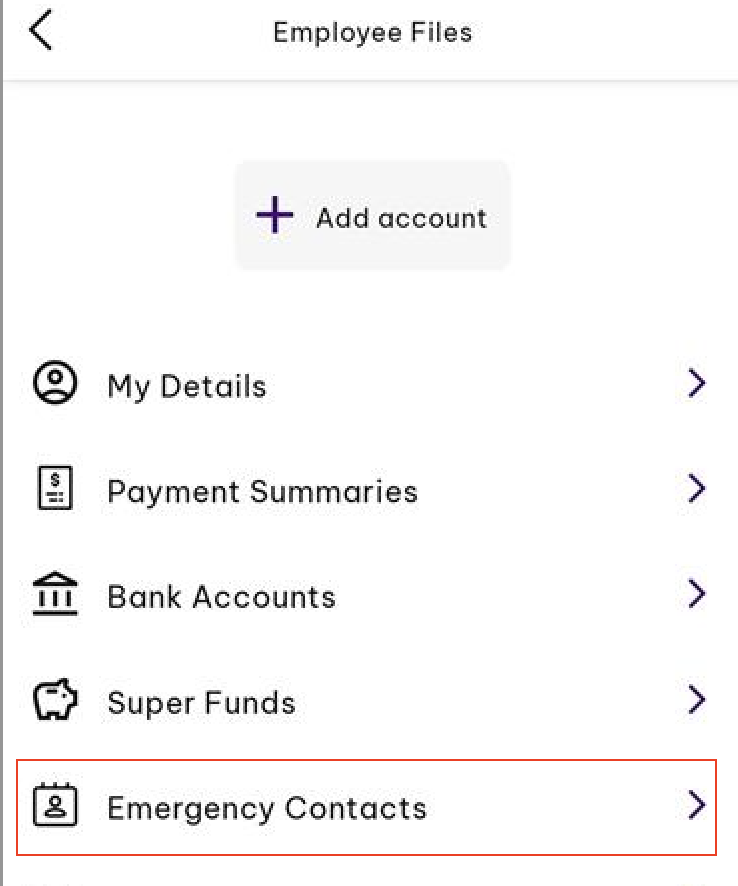
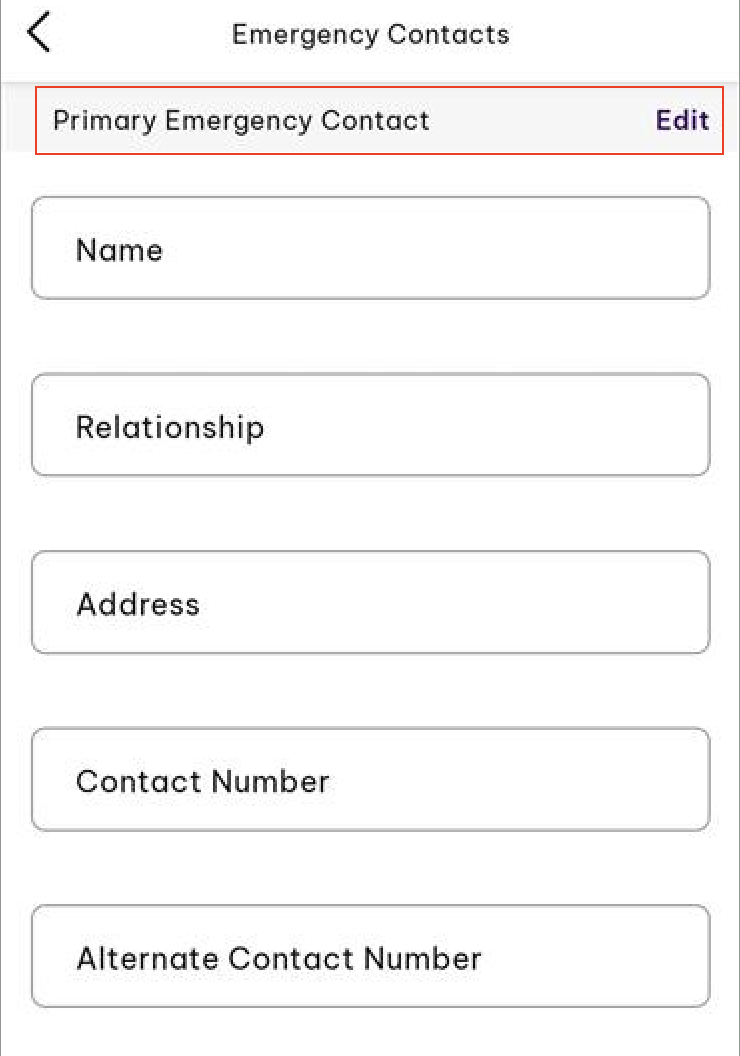
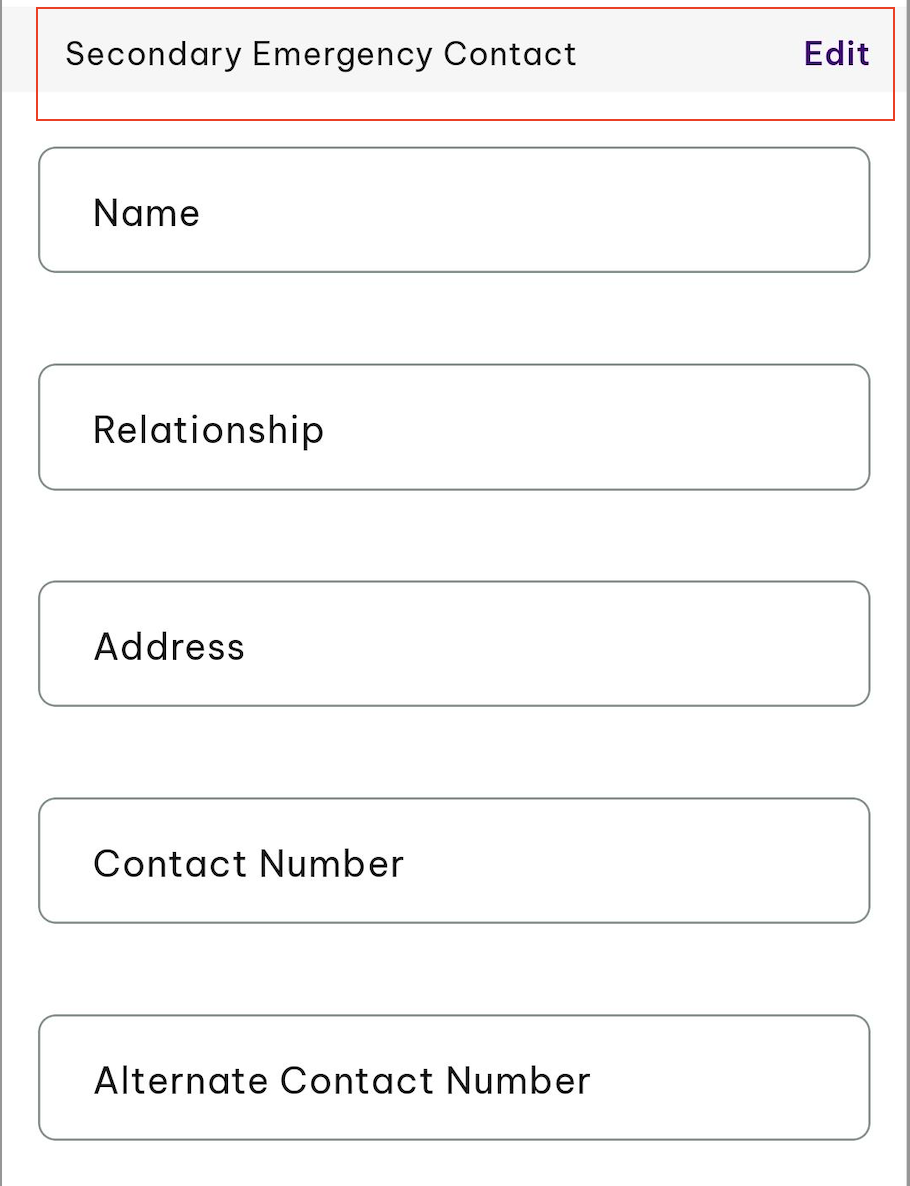
You are able to have up to 2 emergency contacts (a primary and secondary contact), and both of these fields are editable.
Editing your emergency contacts can be done by tapping on 'Edit' next to the Primary Emergency Contact or Secondary Emergency Contact section.