
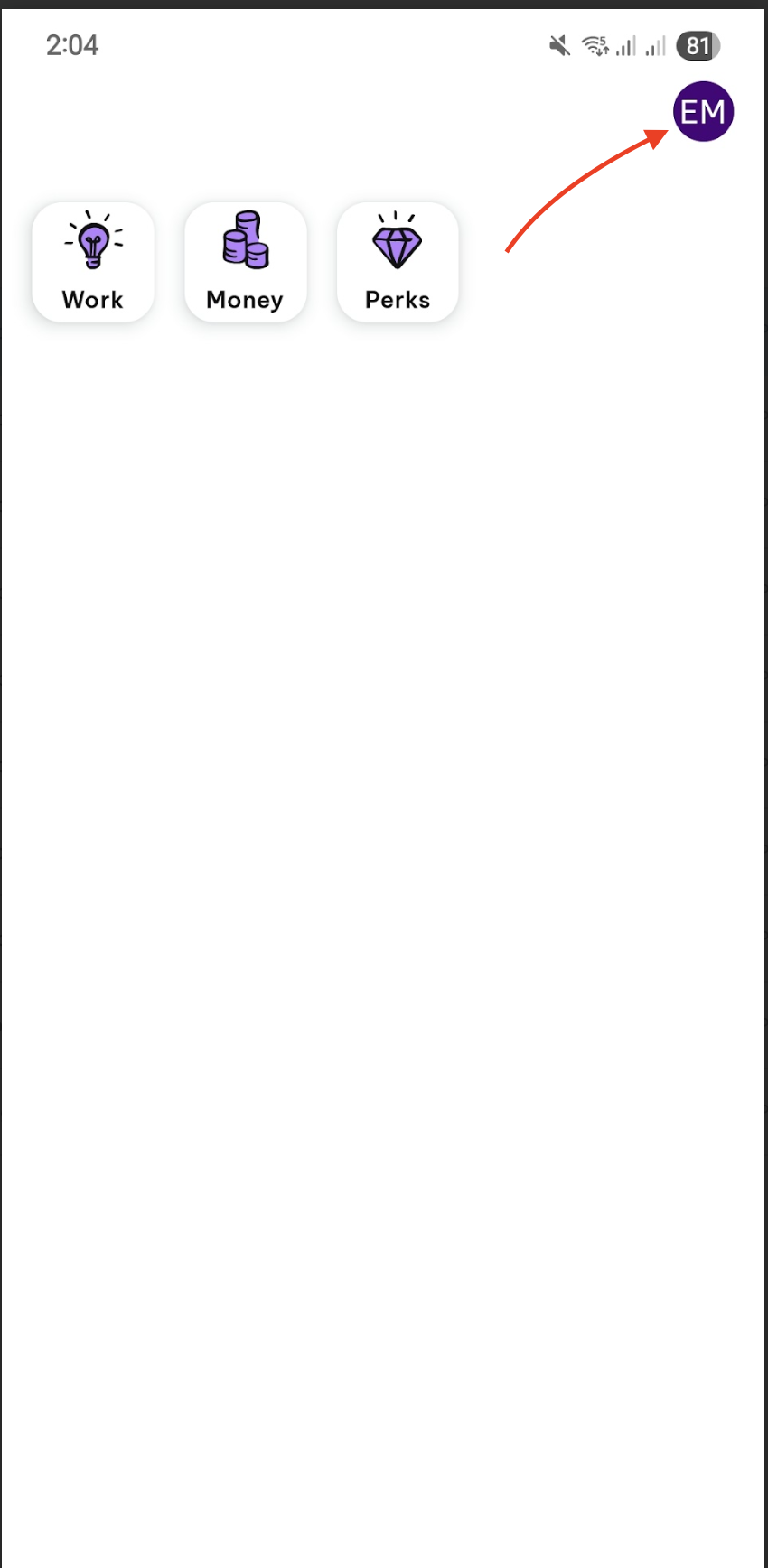
At the upper right most of the EH Work home page, click your profile button.
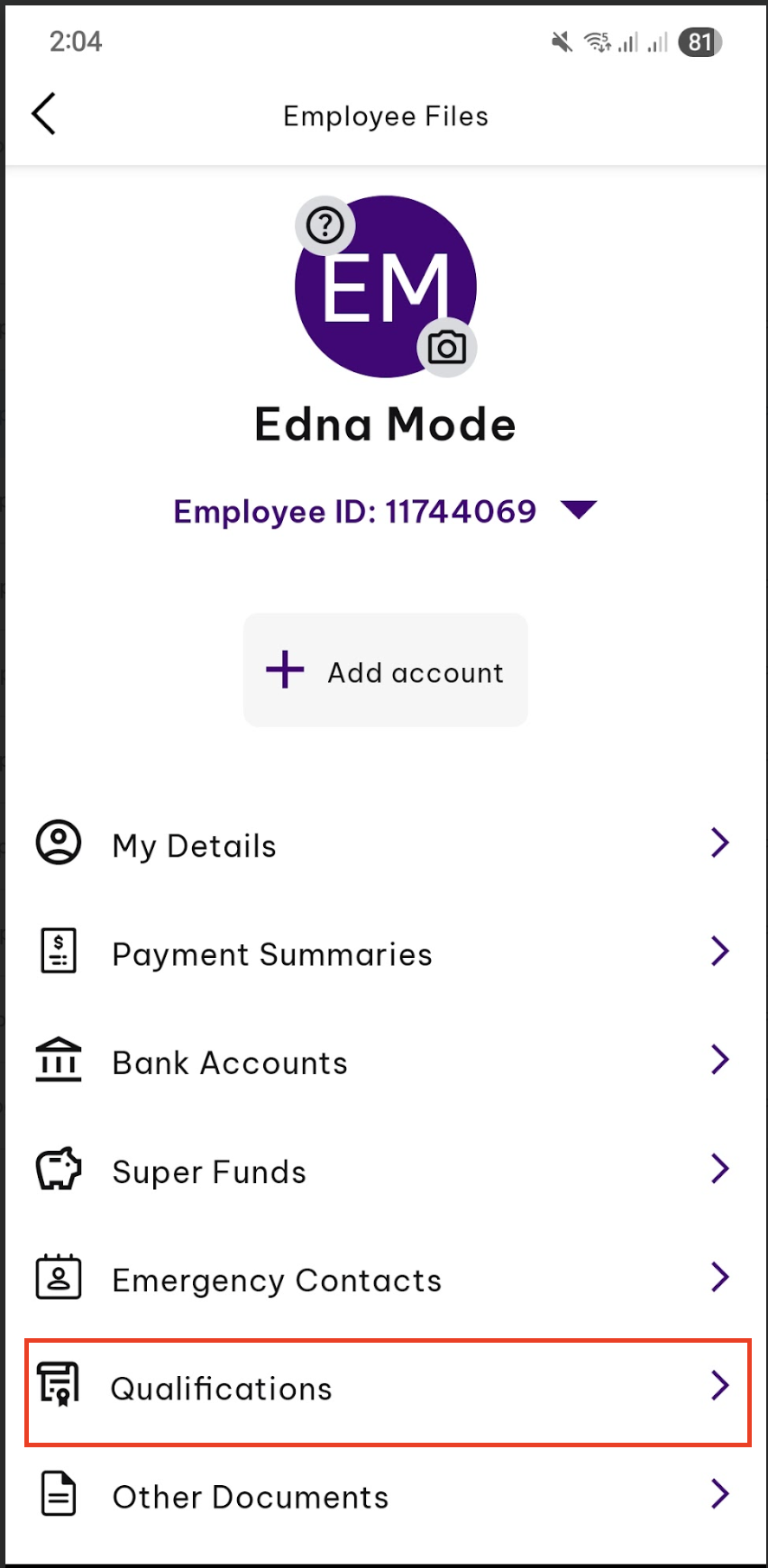
It will take you to your Employee Files where you'll see the Qualifications section. This section depends on how it is currently set up by your Employer. You may have a pre-defined list of Qualifications or you will have the ability to create one.
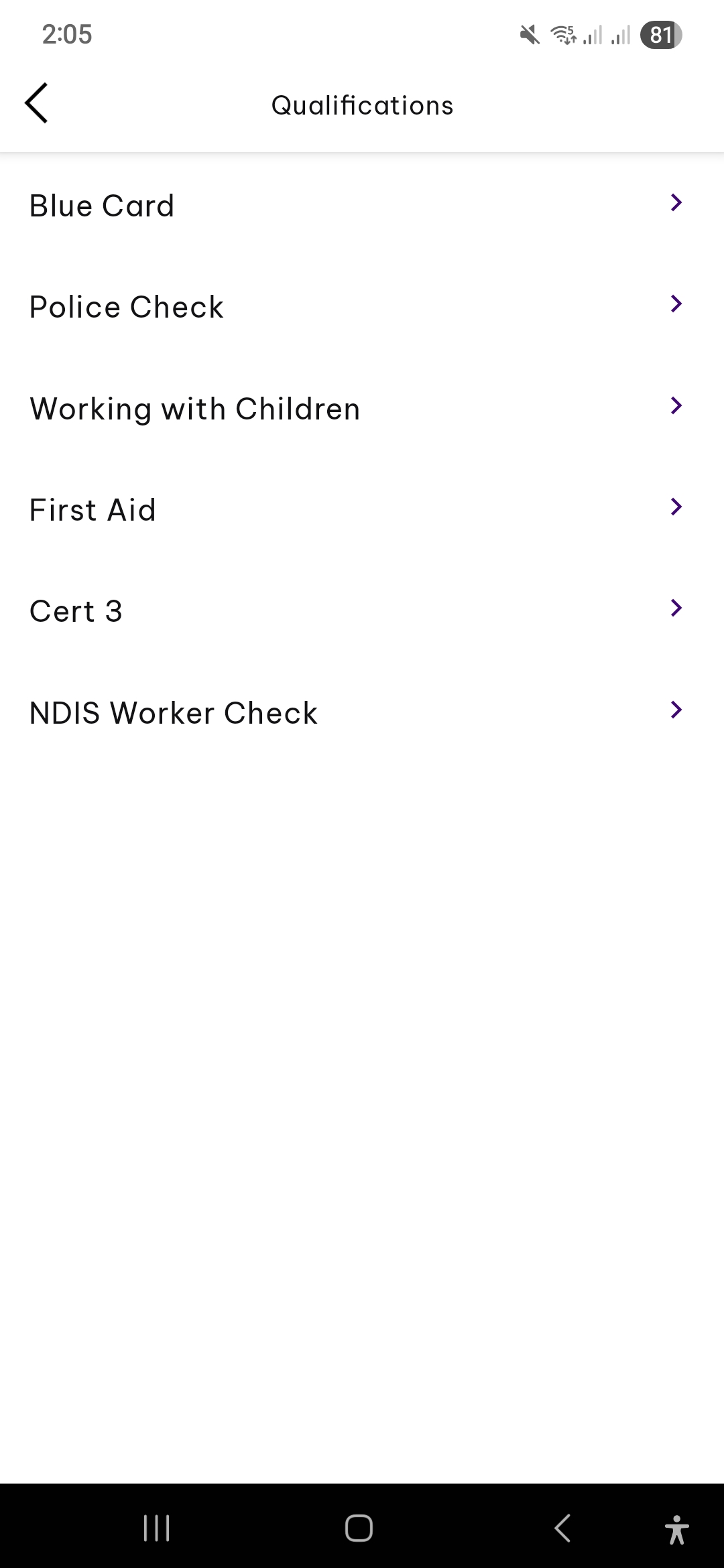
If a list is provided for you, click on the appropriate item.
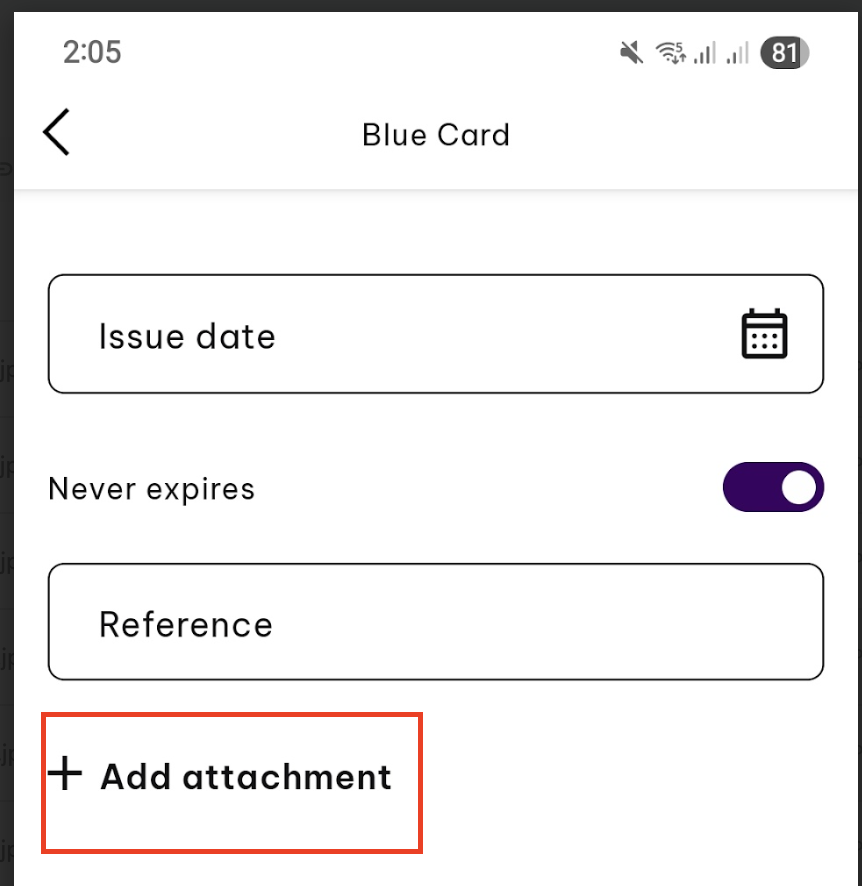
Fill out the necessary information such as the date of issuance of the document. A 'Never expires' button is provided which allows you to input the expiry date, if applicable. And then click 'Add Attachment'
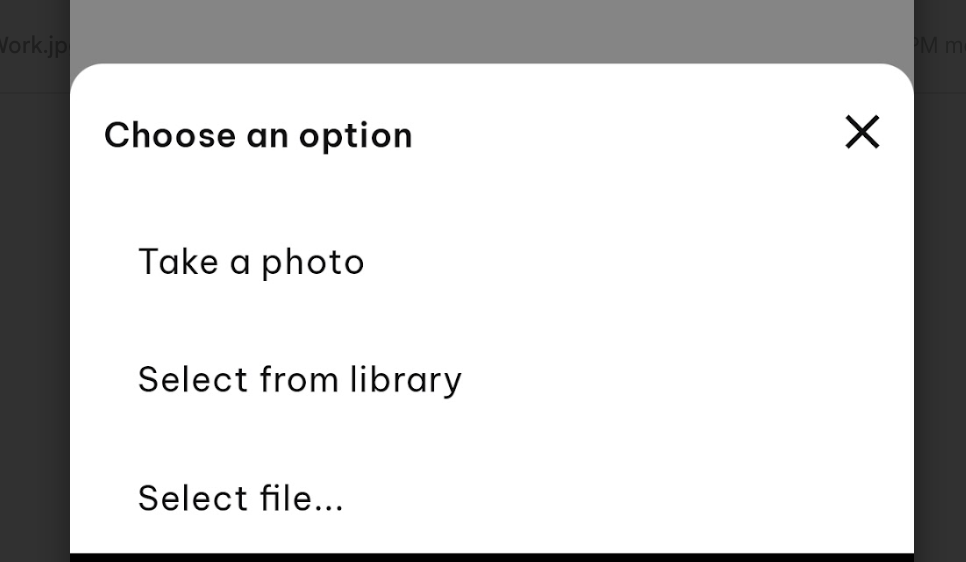
You will have 3 options: Take a photo, select from library or select file.
*Important to note that only .jpg and .pdf files are accepted
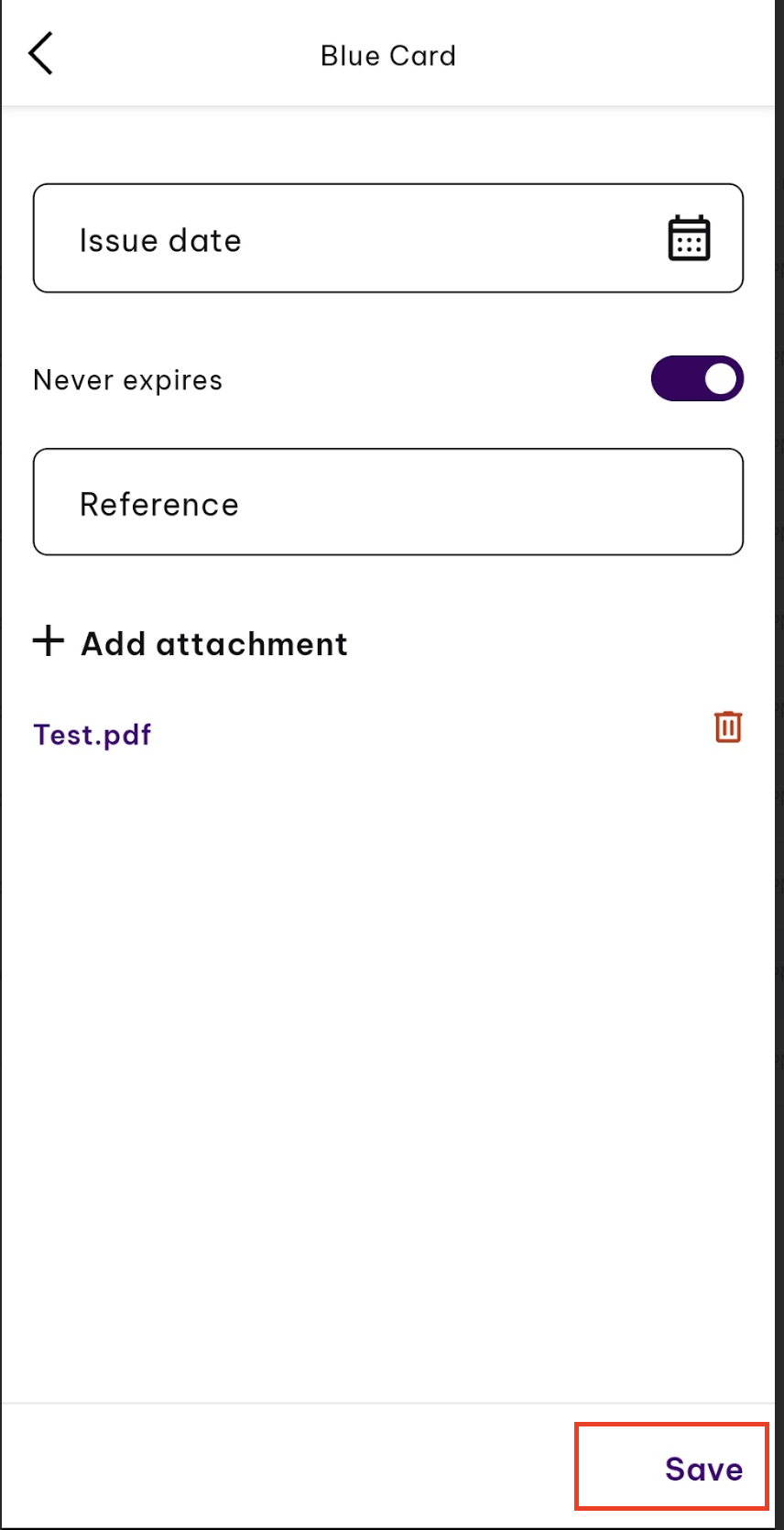
and then hit 'Save'. Tap the < button to go back to the Qualifications list.
Once successfully uploaded, a preview is shown just below the item which tells you if your qualification is current (green) or expired (red).
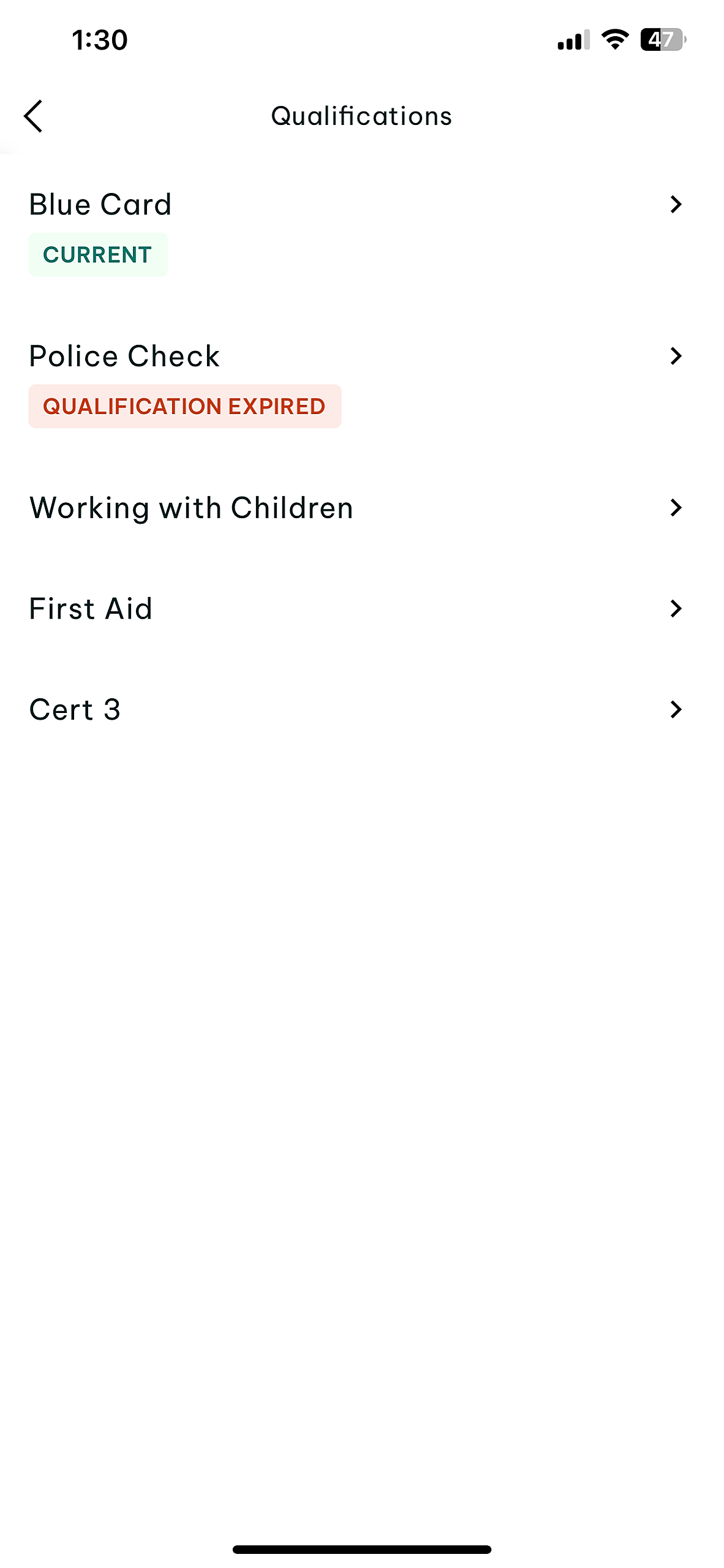
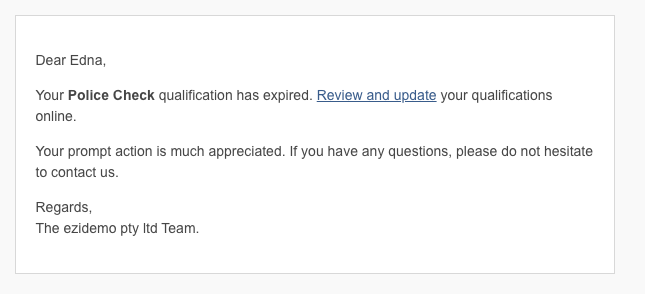
If Qualification is expired, an email will be sent to the user for a prompt action of updating.