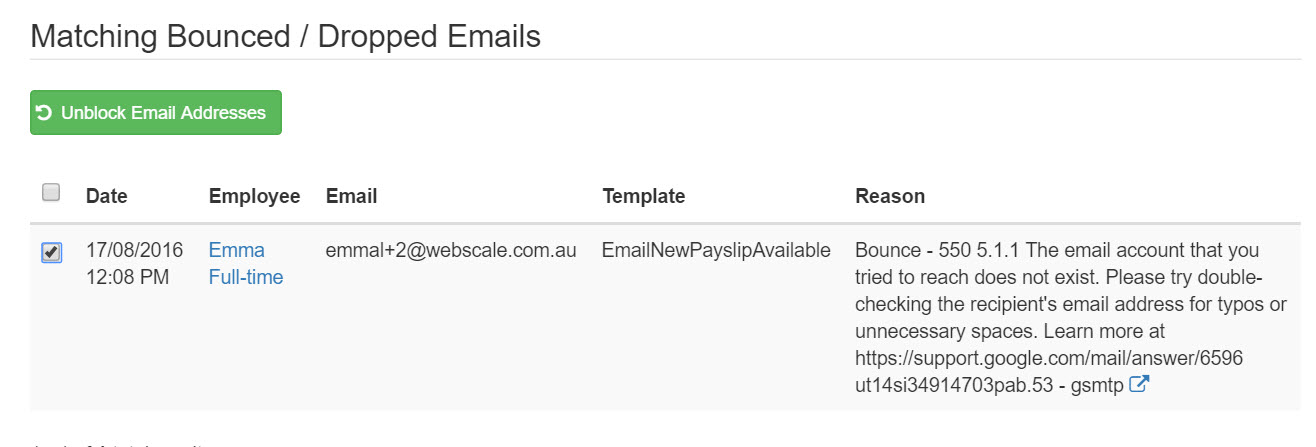

If an employee notifies you that they have not received an email, you are able to check the 'Mail Log' for any emails that have bounced or dropped. Once these are confirmed, you can unblock them from within the business settings.
To access the Mail Log, go to Payroll Settings > Business Management > Mail Log.
You are able to filter the results in a number of ways:
Date Range.
Email Address - Allows you search for a specific address.
Template - The type of email e.g. pay slip, scheduled shift etc.
If there are any bounced/dropped emails, they will appear with the reason and a tick box next to it. If you tick this box you will be able to unblock it in order to re-send once the relevant corrections have been made.