
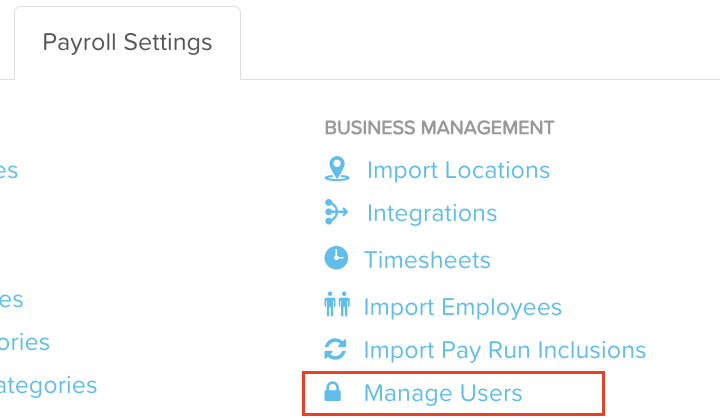
To create a user that has access to the business file, you need to access the 'manage users' page by going to Payroll settings > Manage users.
From here, you are able to set up the following types of user:
Full access gives the user administrator access to ALL areas and functions of payroll, including the ability to authorise STP pay event lodgements.
Restricted access is commonly given to managers. Here you can select what specific areas you want the user to access and restrict by employee group and/or location.
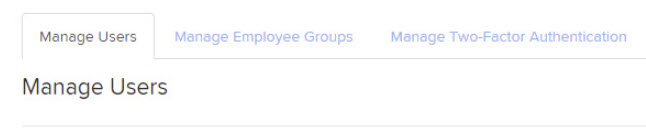
How to add a user
To do this, click the "add" button to the right of screen. The screen will appear as follows:
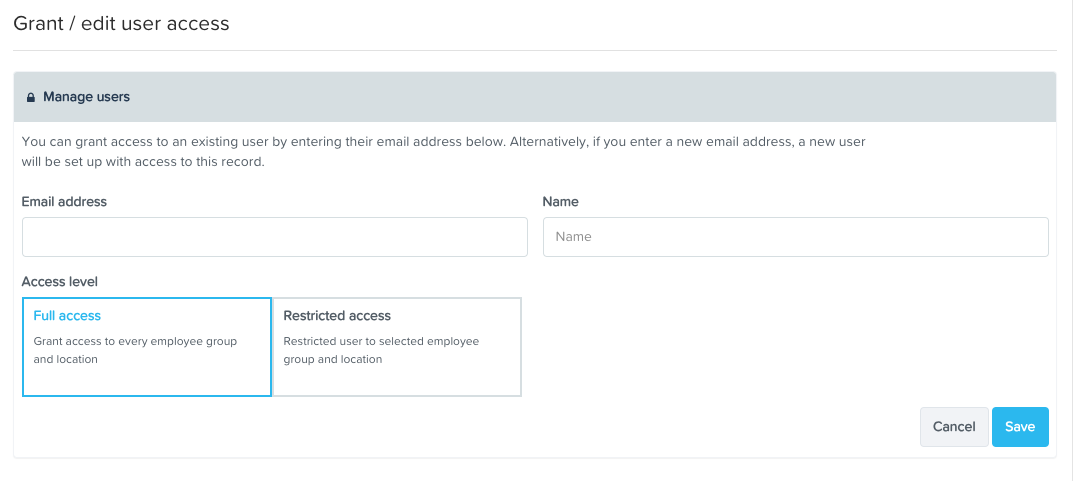
You will be required to complete all of the following:
The user's email address;
The user's full name;
Select the access level for that user by clicking on either ‘full access’ or ‘restricted access’.
If ‘full access’ is selected, then click ‘save’. The new user will receive two separate emails with login details and instructions on creating a password and logging into payroll.
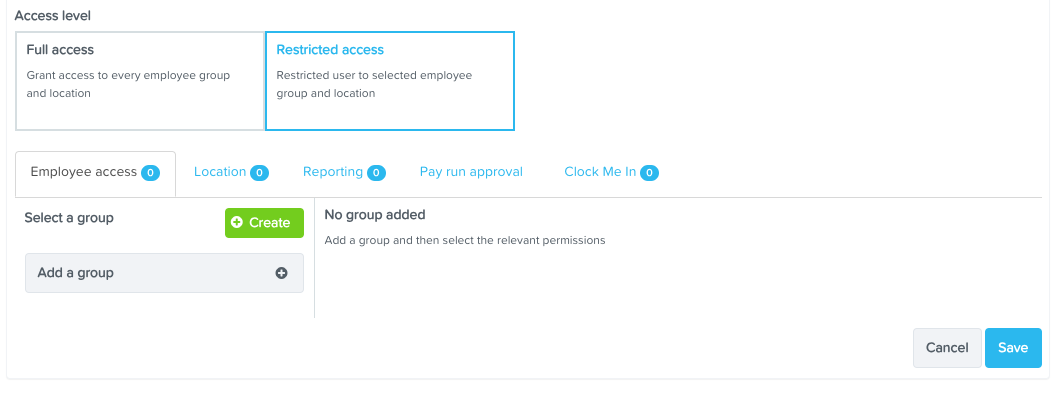
If ‘restricted access’ is selected, further settings will appear for you to complete. There are 5 different sub-settings you can provide a restricted user with:You can choose to activate one or all 5 of the different types of access:
Employee access
Location access
Reporting access
Pay run approval
Clock Me In access