

Before performing the changes below, please contact the support help desk to set up the required pay condition rule sets.
Step 1: Generate a Report for Employees Exceeding 5,000 KM
We recommend monitoring employees who exceed the 5,000 KM threshold and generating this report on a regular basis to ensure accurate payroll processing.
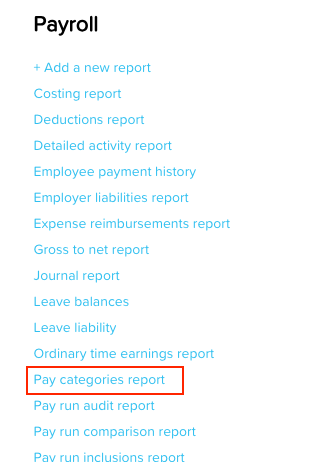
Go to Reports > Pay categories report
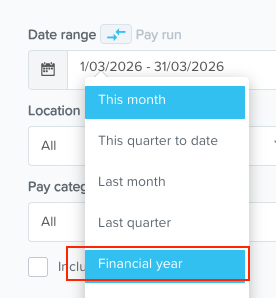
Select the current Financial year from the Date Range field
Select either 'Vehicle Allowance - Up to ATO Limit' or Vehicle Allowance - Above ATO Limit' from the Pay Categories field and then hit Run Report
From the report, identify the employees with over 5000 Units
Step 2: Add the “>5000 KM” Tag
Once identified, update the employee’s profile by adding the “>5000 KM” tag. This tag is used to trigger the appropriate pay condition rules.
Go to Payroll Settings > Tags
Look for >5000KM and click the edit or pencil icon
Tick on the names of the employee/s.
Step 3: Override the Employee’s Vehicle Allowance Pay Category Rate
Go to the employee's profile > Pay Rates
Tick the Show all Pay Categories box

Look for the Vehicle Allowance - Up To ATO Limit pay category > tick Override > Input '0' in the amount per unit field

Look for the Vehicle Allowance - Over 5000km pay category > Input '.99' in the amount per unit field

Hit 'Save'
Step 4: Review Pay Categories During Payroll
During payroll processing, you should see the Vehicle Allowance - Over 5000km pay category. The Vehicle Allowance - Up to ATO Limit pay category will still display, however this can be ignored as the Rate is set to '0'.
Verify that:
The correct pay categories are triggered
The rates applied are accurate