

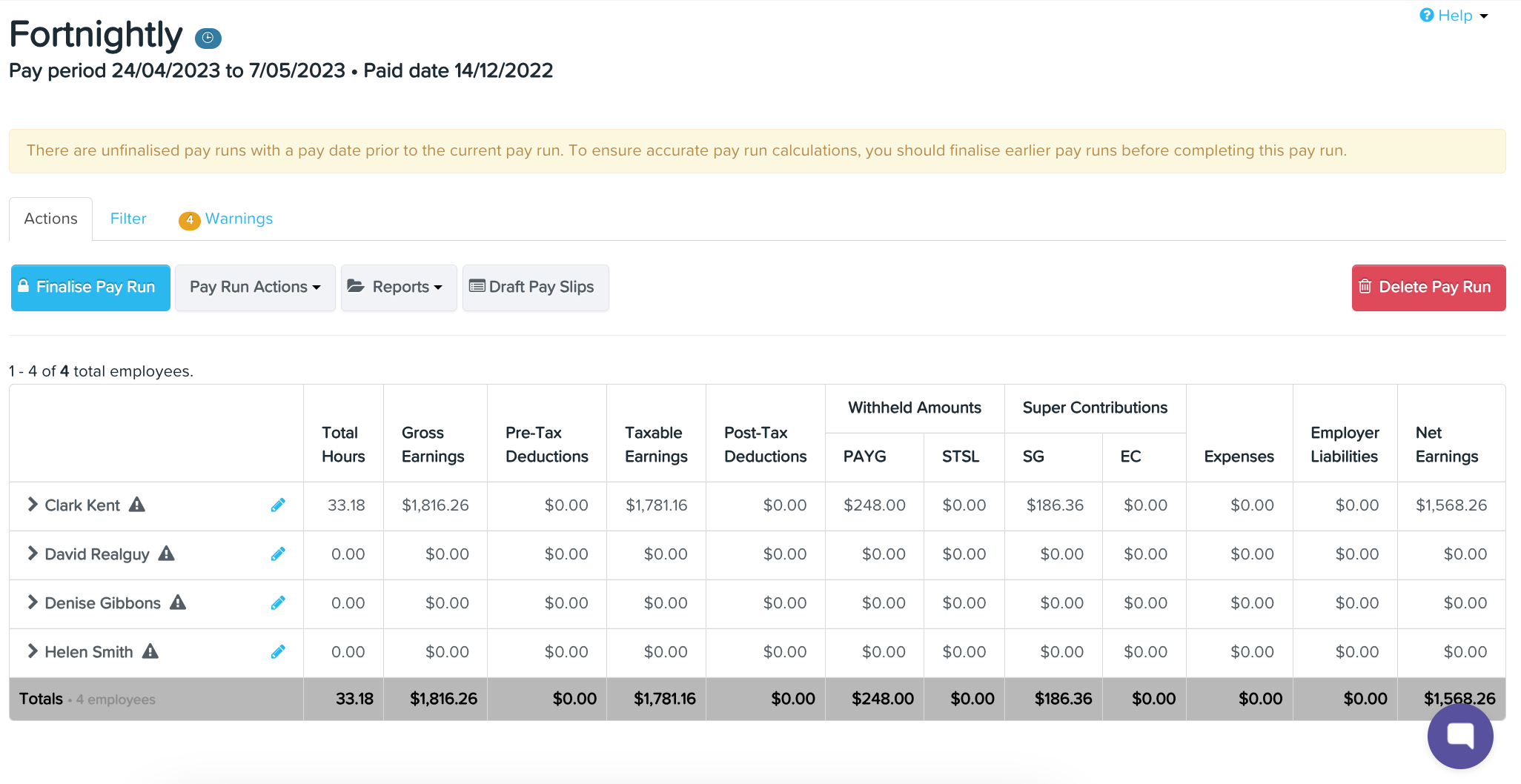
Access the Pay Run: Navigate to the Dashboard, select 'Pay Runs' and choose the pay run you wish to modify.


2. Delete the Pay Run: Click on 'Delete Pay Run' to remove the selected pay run.
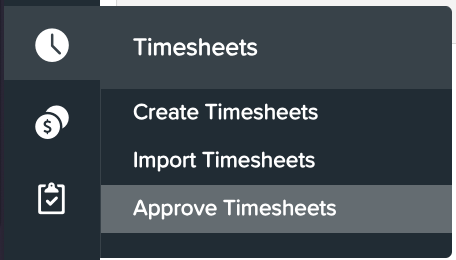
3. Approve Timesheets: After deletion, proceed to 'Approve Timesheets'.
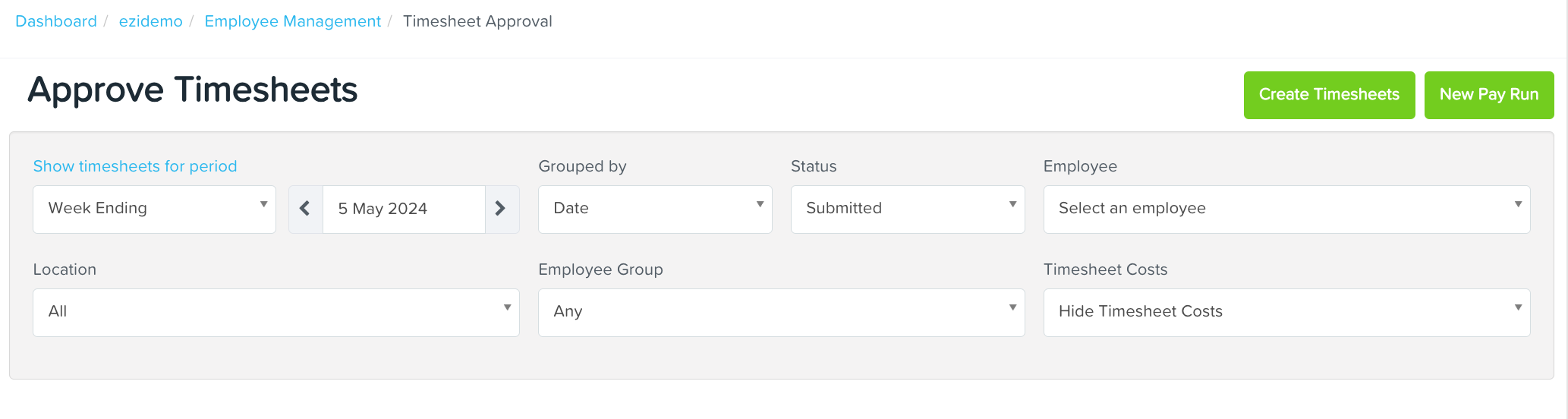
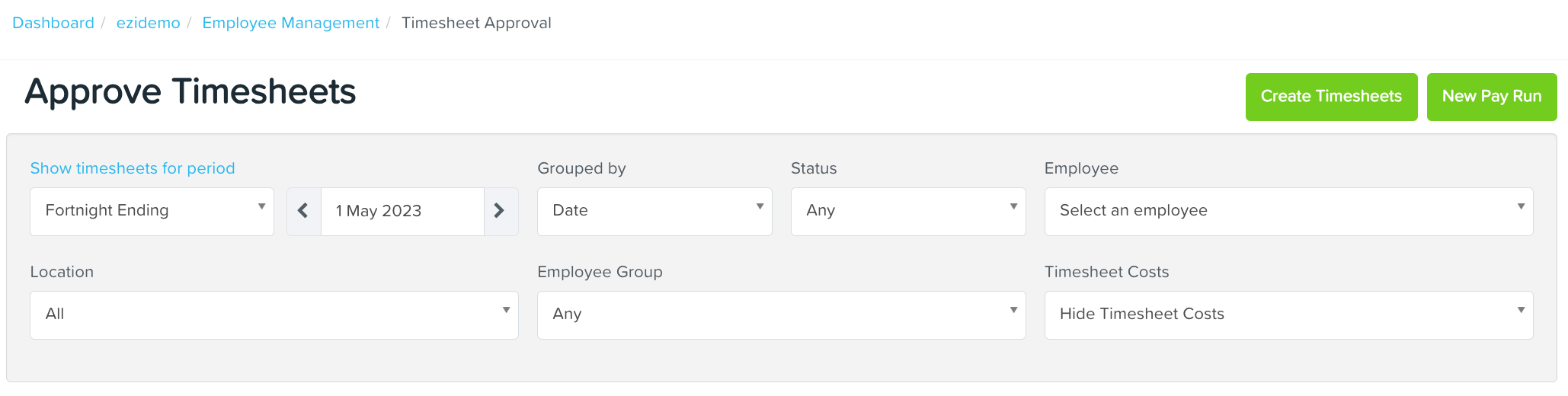
4. Select Timesheets: Adjust the display options to filter timesheets by period, status, employee, location and etc
Once you are happy with the preferred options, the system will pull out the timesheets from that pay period.
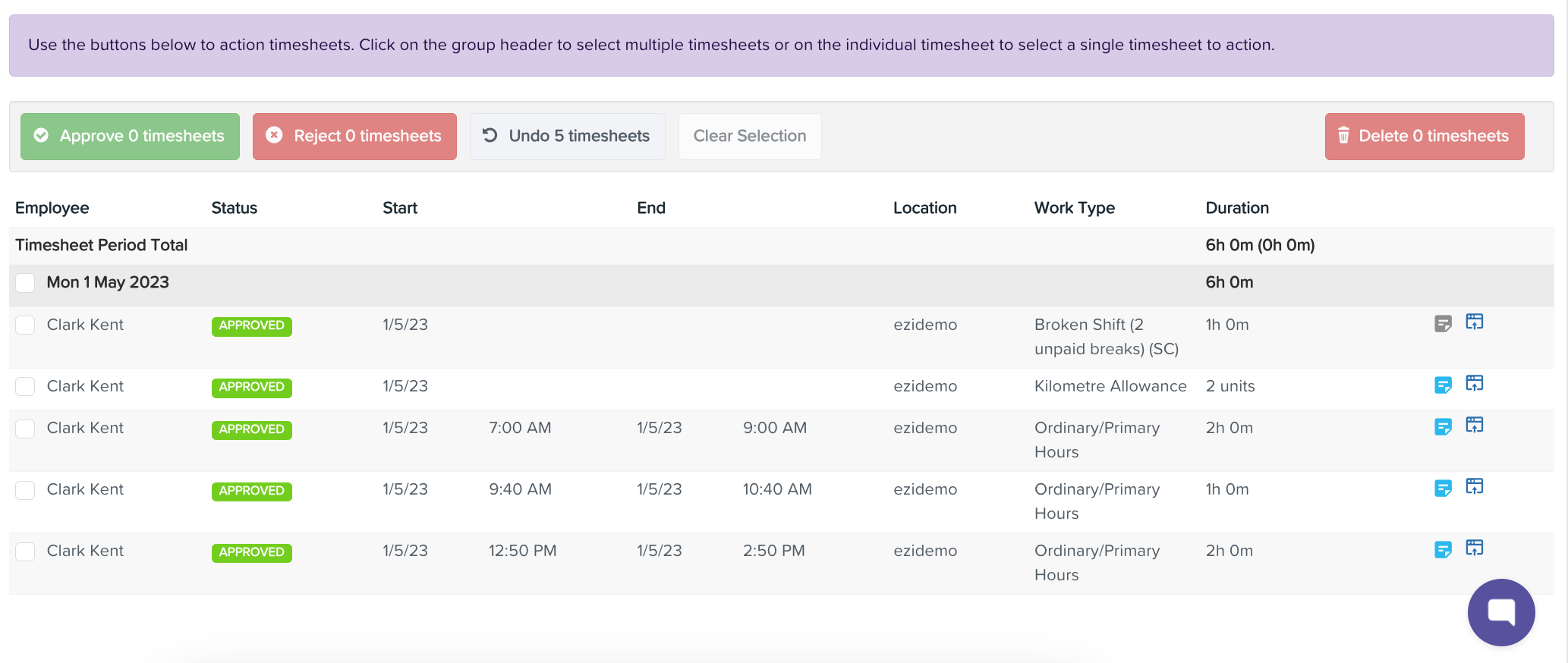
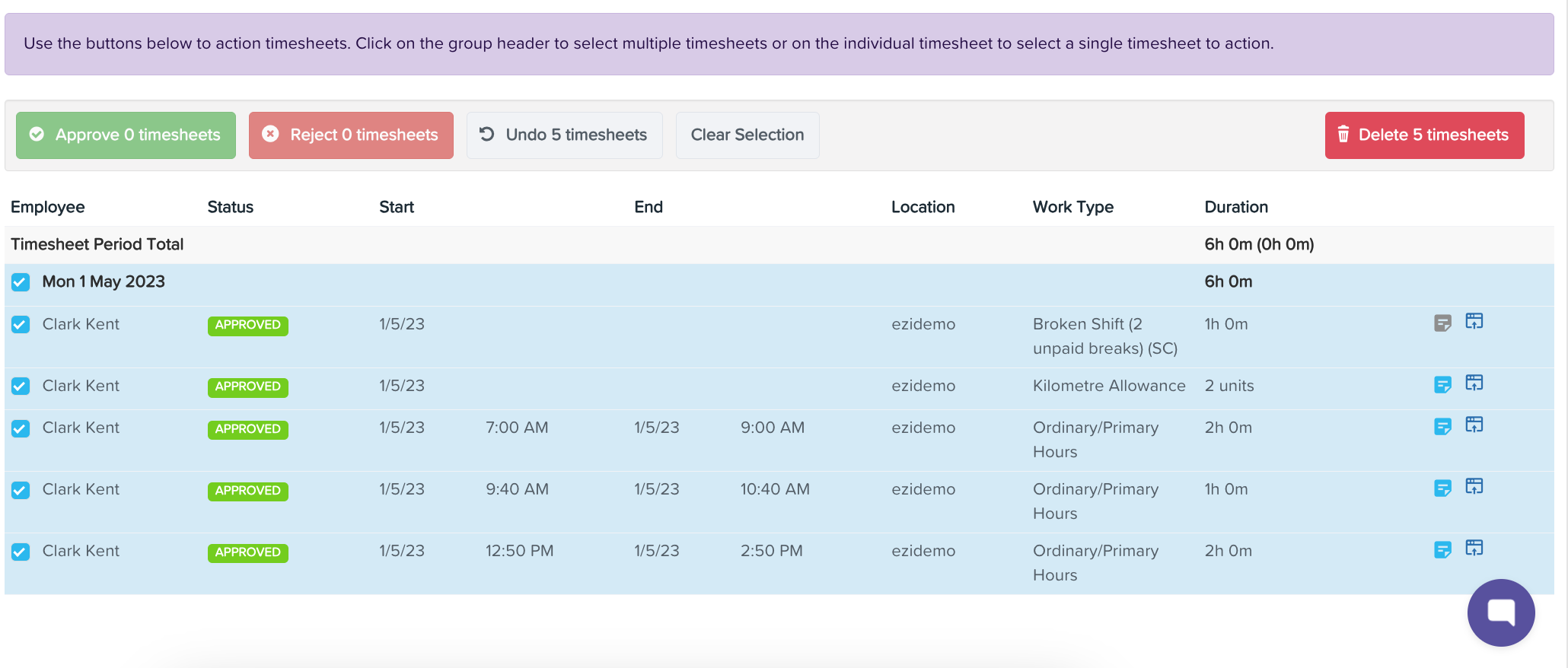
5. Bulk Deletion of Timesheets: Check the date box to select multiple timesheets for deletion and click the 'Delete Timesheets' button located in the upper right corner.
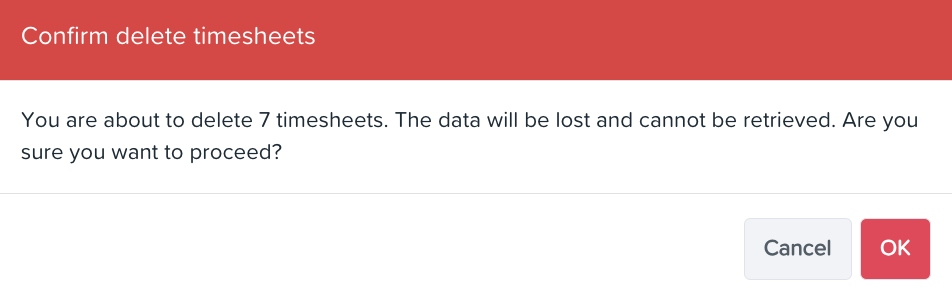
6. Confirm Deletion: A confirmation prompt will appear. Click 'Ok' to confirm the deletion of the selected timesheets.
You may now continue with the process of Importing timesheets in Ezipay.