
Run an employee details report following the criteria below.
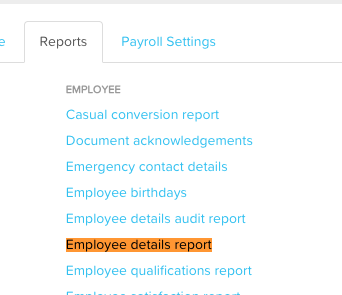
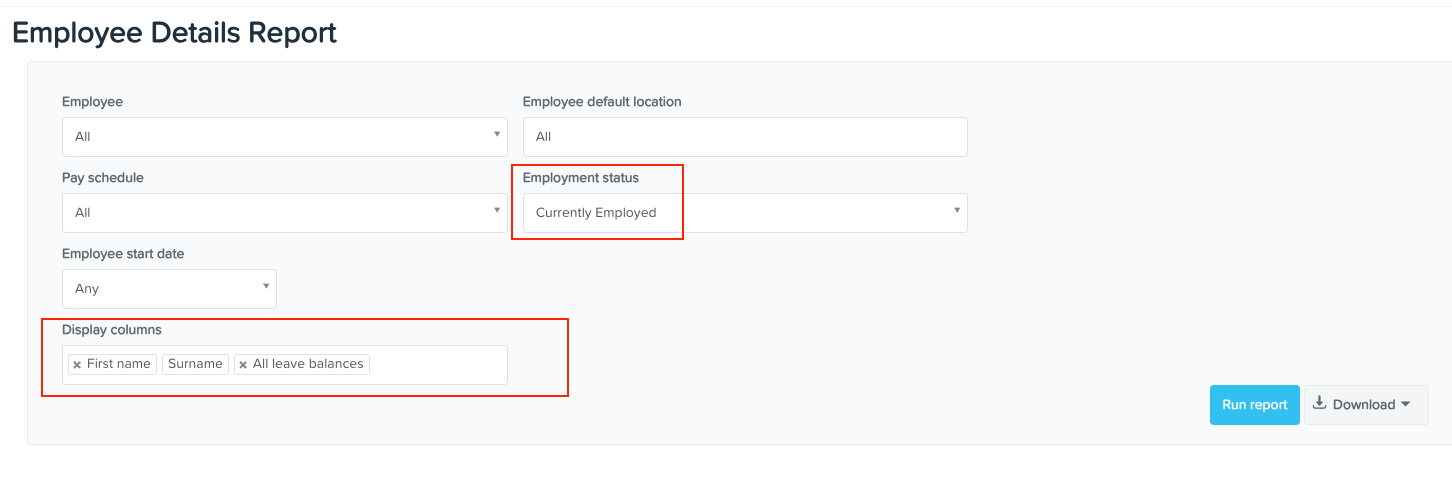
Review each leave category and see if there are incorrect leave balances. Check if
Family and Domestic Violence Leave = 0 days
Paid Family and Domestic Violence Leave = 10 days
Personal/Carer's Leave (10 days) = 0 days
Unpaid Pandemic Leave = 0 days
Adjust the leave balances.
You may either create an AdHoc pay run or adjust the leave balances through an existing pay run. To do that:
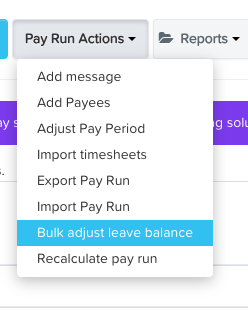
Open the pay run and select Bulk adjust leave balances from the Pay Run Actions dropdown.
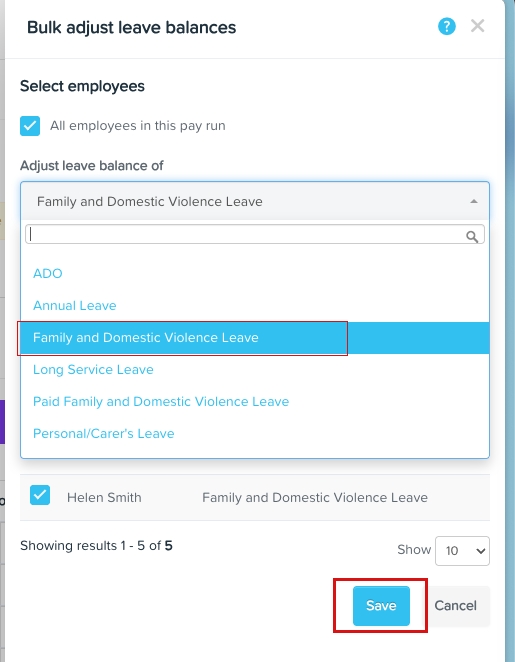
Tick the All employees in this pay run checkbox, and select the leave category you want to adjust. Click Save.
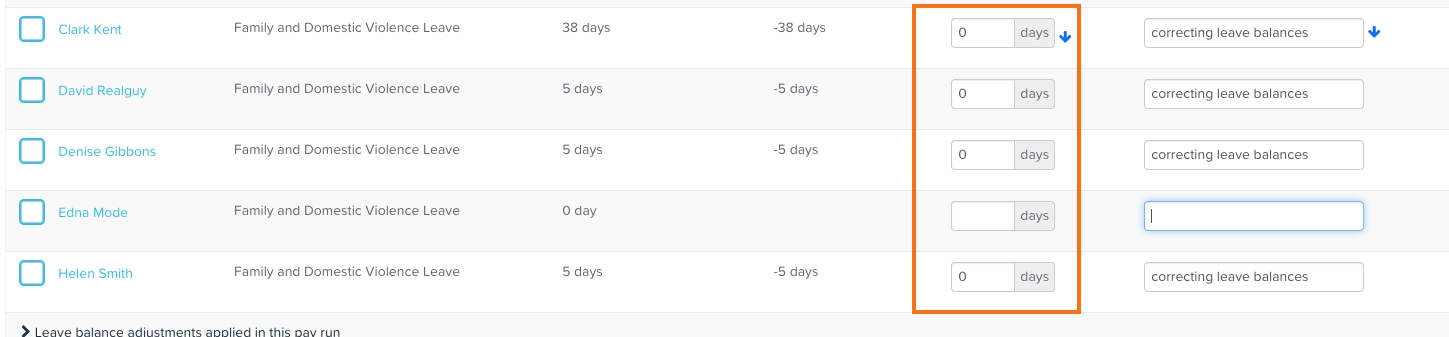
For those employees with incorrect balances, enter the new leave balance in the New leave balance column. You may also add notes in the Notes field. In this example, we will set the Family and Domestic Violence Leave to 0.
Once you're done with the adjustments, tick the checkbox next to the employee's name and click Apply to pay run. Leave the ones with no adjustments unticked.
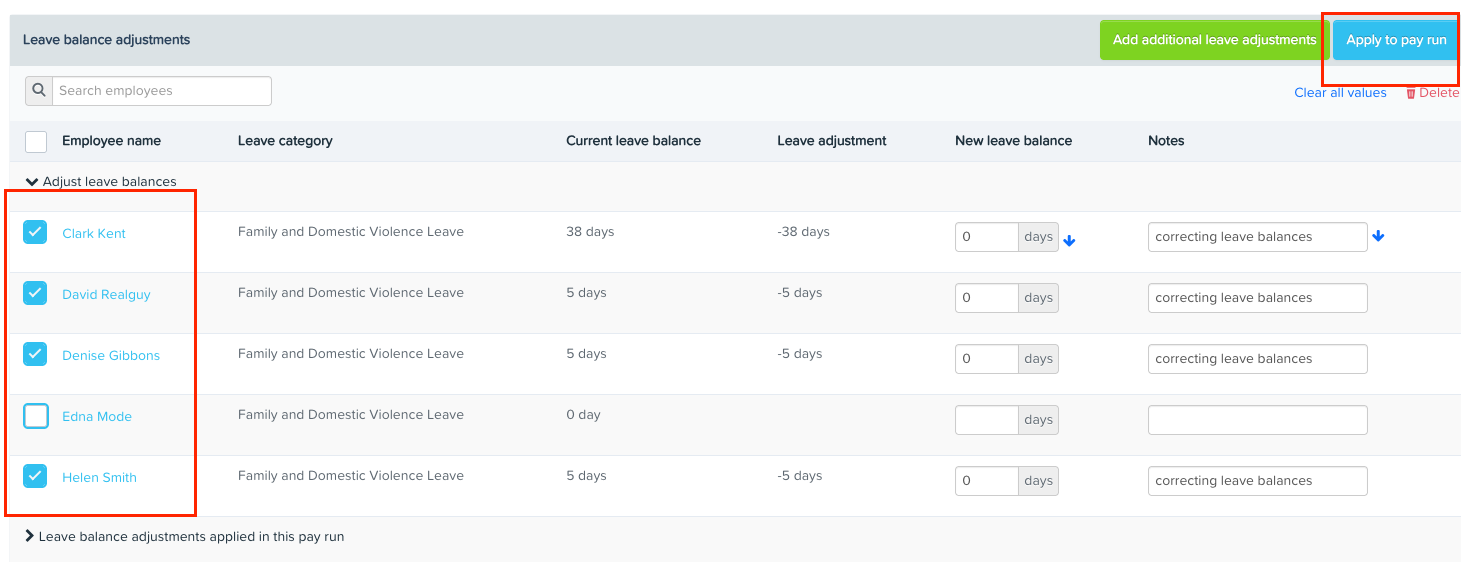
To adjust the balances of the other leave categories, click on Add additional leave adjustments and repeat steps 2 to 4.