

You can use the leave approval feature on the EH Work app to see your employee-submitted leave requests and then approve or decline these submissions. You can also use this feature to filter what leave requests you see on your approval page, giving you the ability to tailor what employee submissions you see on the app.
Access leave in EH Work
Leave Management
Search EH Work in the App Store for iPhone users, or the Google Play Store for Android users, or click the following based on your device:
iOS/iPhone
AndroidLog into the app using the same login credentials you previously use for your payroll log in.
There is a magic email link if you cannot remember your log in.
From the Work view, select Leave from across the top of the screen.
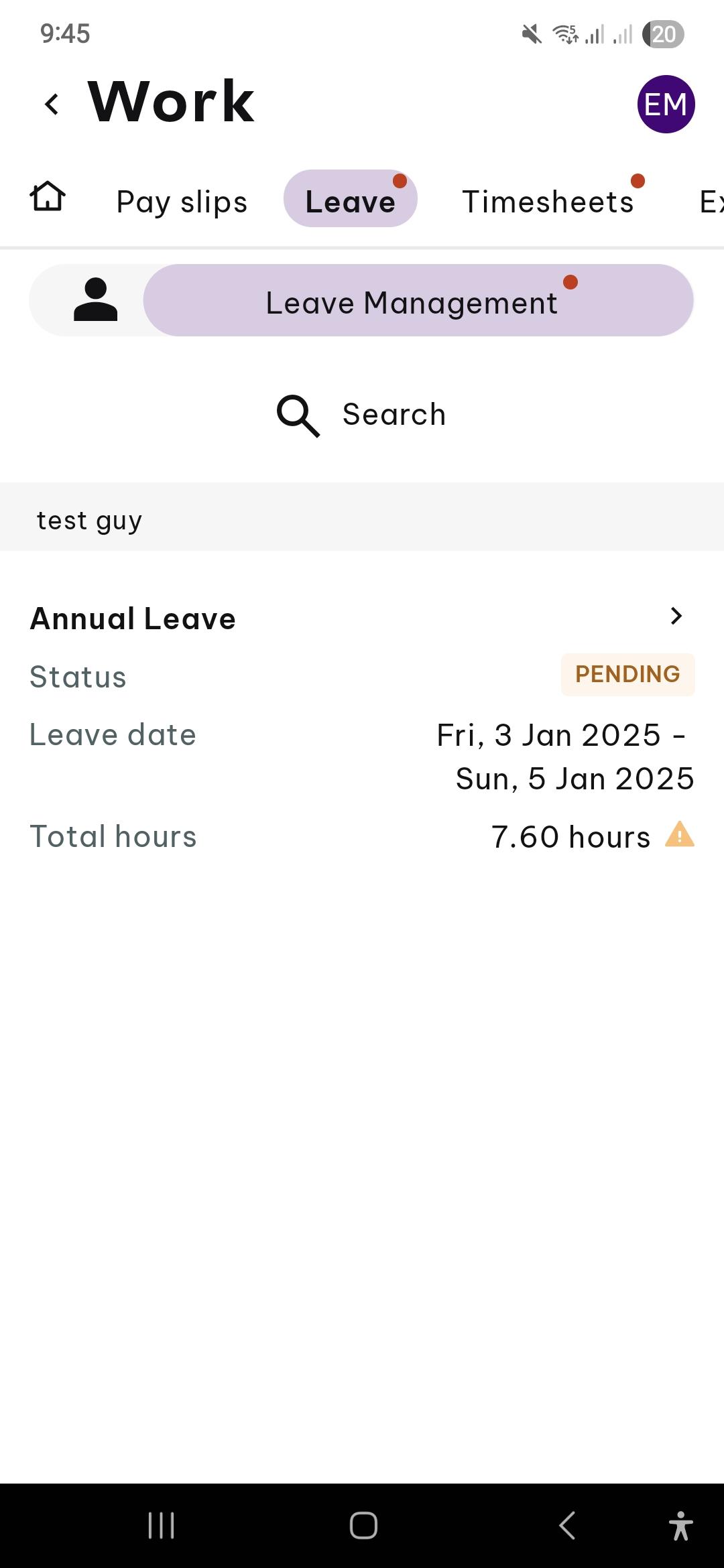
Now, you need to toggle the switch from My Leave, to the Leave Management setting.
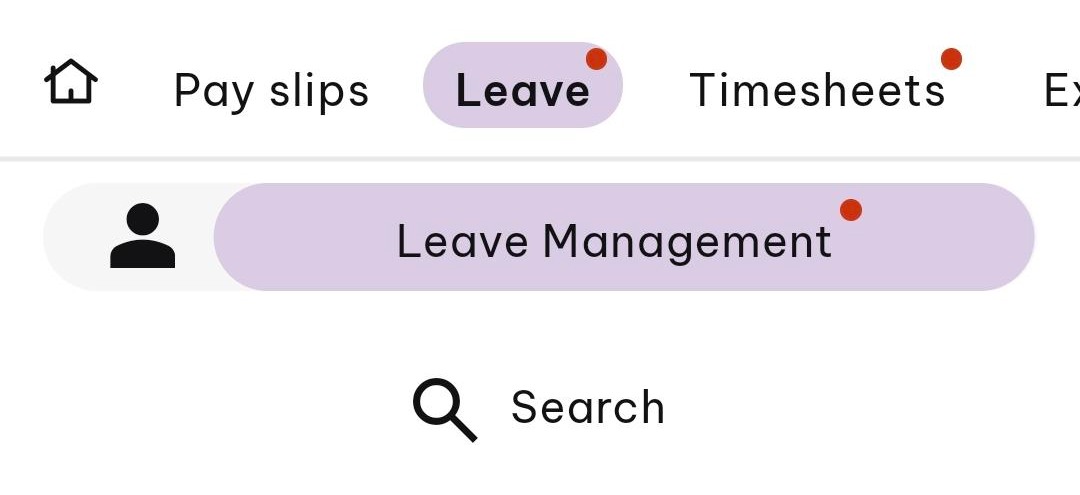
If in doubt what setting you are on, look at how many people are shown. If you can see one person, that means the alternative option is My Leave for ONE PERSON. If you can see multiple people, then you are already on My Leave and need to toggle the switch to access LEAVE MANAGEMENT.
Approve a Leave Request
Log into the EH Work application.
Select Leave from the top menu.
Open In Leave Management mode.
You are shown a list of pending leave requests.
To approve a request, tap one to open.
You can then see the full details of the leave request:
Employee
Leave category
Dates
Leave required (hours/days)
Choice to show how this fits into their overall leave balance
Whether there are any overlapping leave requests
Notes
Additional Notes
Add Attachment
If the employee has sufficient leave accrued you have the option to Approve, Decline or Save any changes you have made.
Tap Approve to approve the request, or Decline to decline.
If you Decline you will be asked to give a reason.
The employee will be notified of the decision.
Manage leave
Search or Filter Leave Requests
The Leave Management home page only shows a few requests at a time and only pending ones. This means you may want to search and filter these results when looking for a specific employee’s requests.
Log into the EH Work application.
Select Leave from the top menu.
Toggle to select Leave Management and tap the search bar.
This takes you a choice of filters that will help you locate the request you need:
Leave Status
Date Range
Leave Category
Employee
Location
Group By
Edit Leave Requests
When an employee has insufficient leave accrued or there are overlapping leave requests you may wish to edit a leave request. You can also add any extra relevant attachments like further medical certificates or supporting documents that have been provided to you that are relevant to the request.
Log into the EH Work application.
Select Leave from the top menu.
Toggle to select Leave Management.
Once located, tap to open the request you want. You may need to use the filter option
You can only edit a leave request before it has been applied or only part applied in a pay run. Fully applied leave can not be amended.
If the request is pending it may be easily found on the leave management homepage, otherwise you may need to search for it.
For pending or approved leave requests, you can edit any of the fields.
Tap Save.
Important
When editing a partially applied leave request, a user will be able to edit the last day of leave, work hours, notes and add an attachment. The status of an amended partially applied leave request will update to 'in progress' if there are hours not yet applied. If a leave request is amended to the full amount of hours already applied in a pay run, then the leave request is automatically 'approved' when submitted.
Cancel Leave Requests
Log into the EH Work application.
Select Leave from the top menu.
Toggle to select Leave Management.
If the request is pending, it may be easily found on the leave management homepage. Otherwise you may need to search for it.
Tap to open the request
Select Cancel leave request.
You are asked “Are you sure?”. Select Yes to confirm or No to return to the open leave request.