

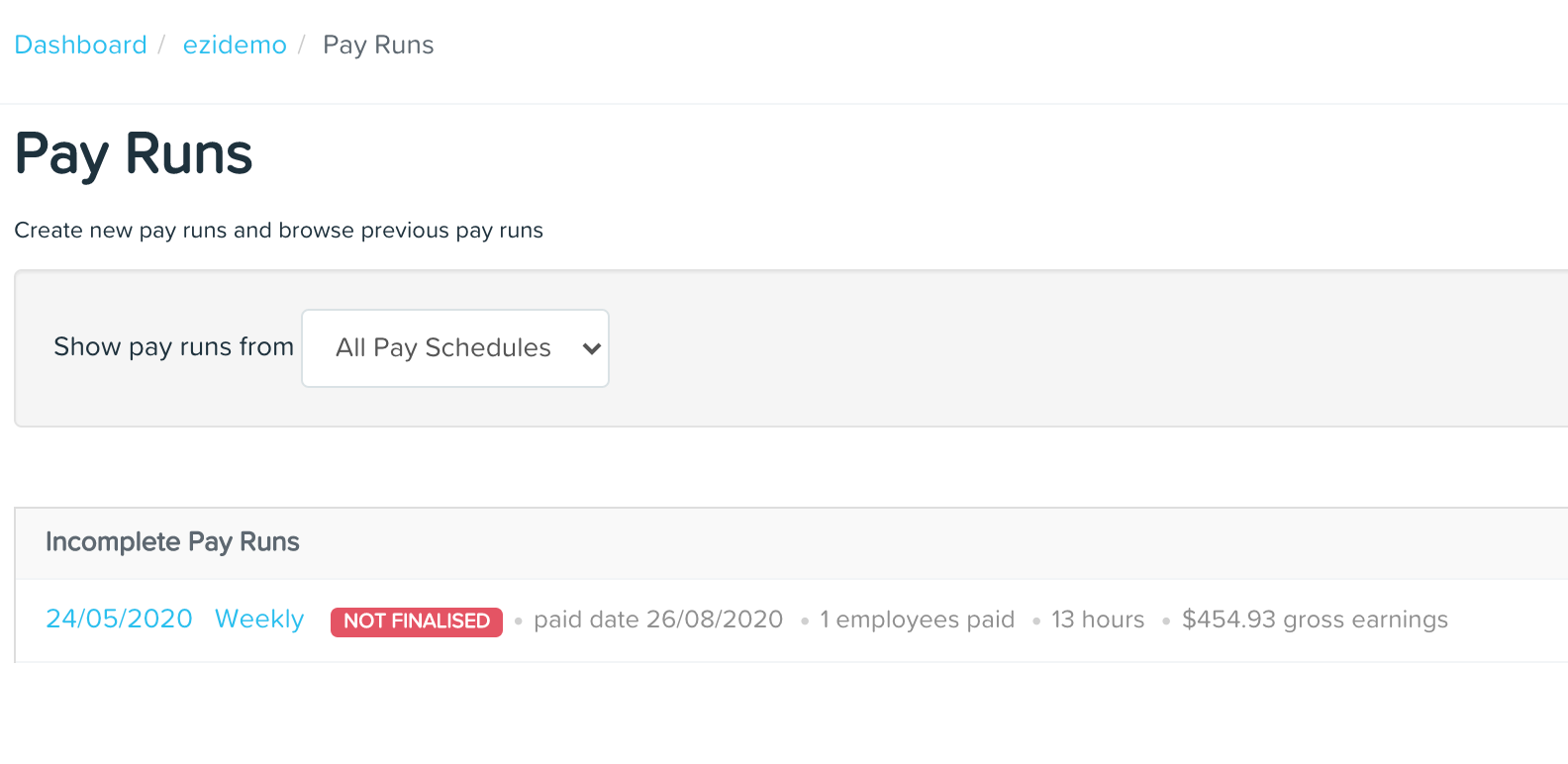
Once you have created your pay run you now need to process and finalise it. From your Dashboard select the Pay Runs tab and click on the required date range.
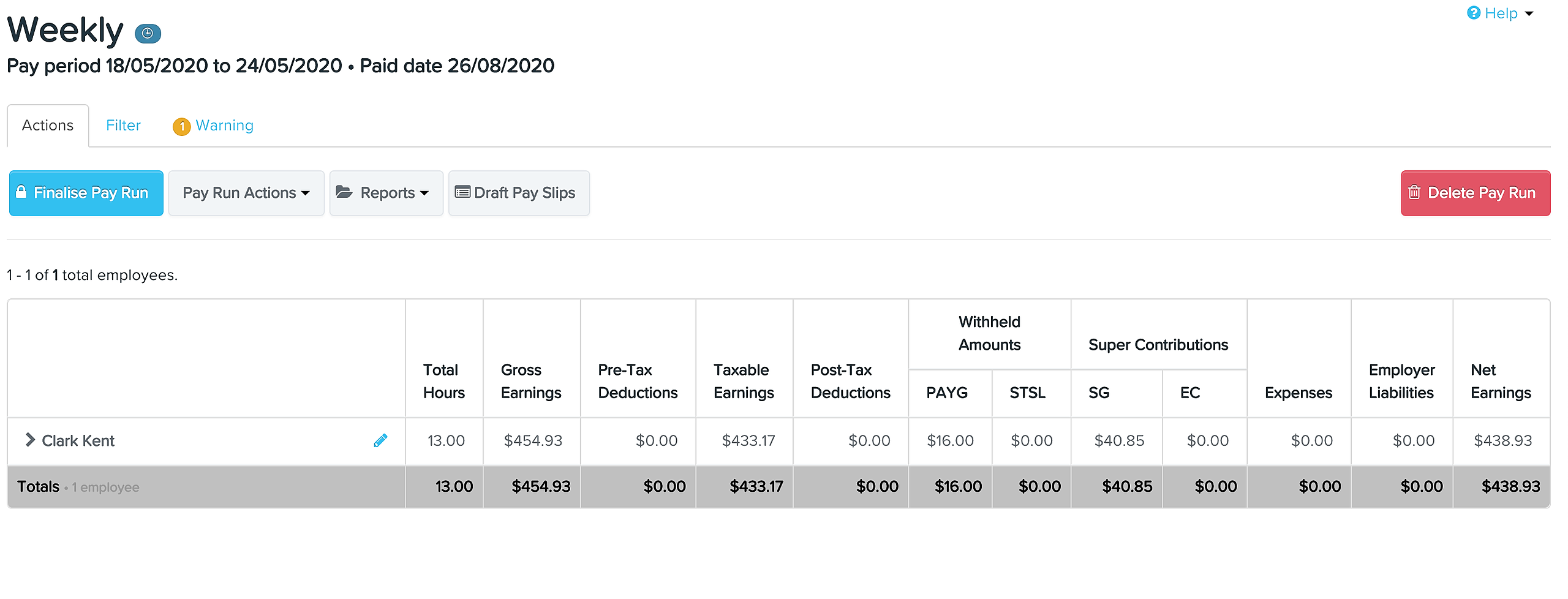
You will now see a list of your employees that are attached to the pay run.
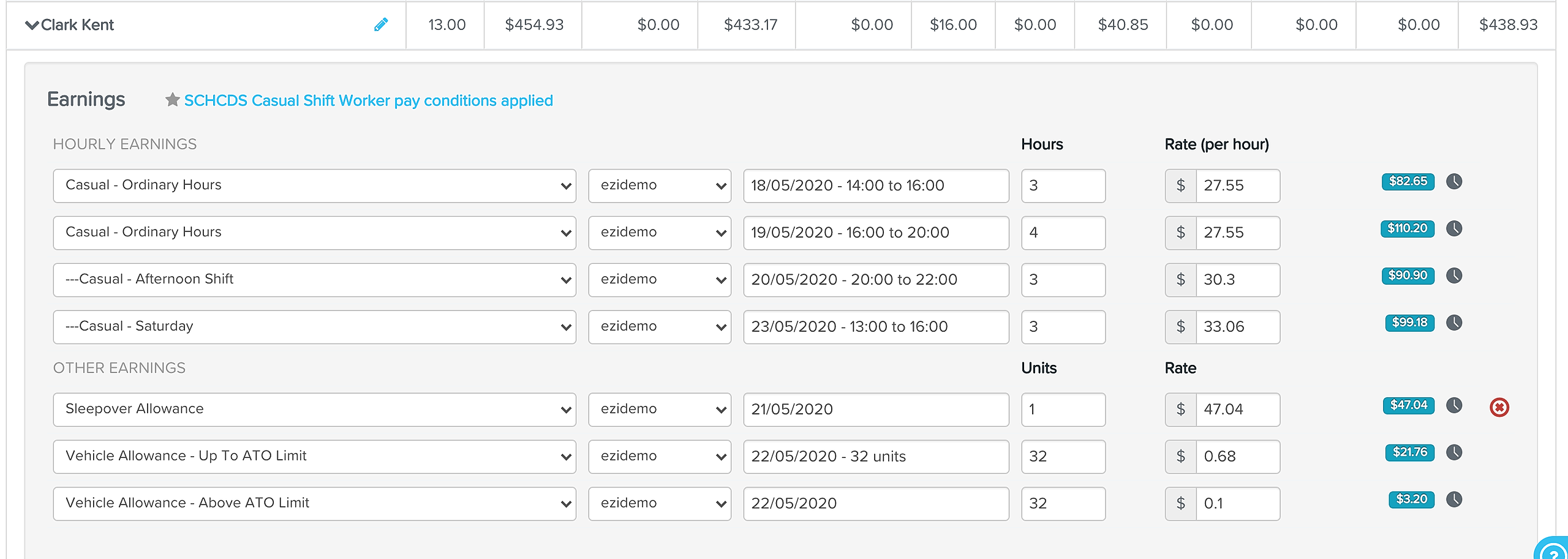
You can select them to open the details of their time sheet. Then make any adjustments required (usually there will be nothing to do here).
Once you are finished select Finalise Pay Run.
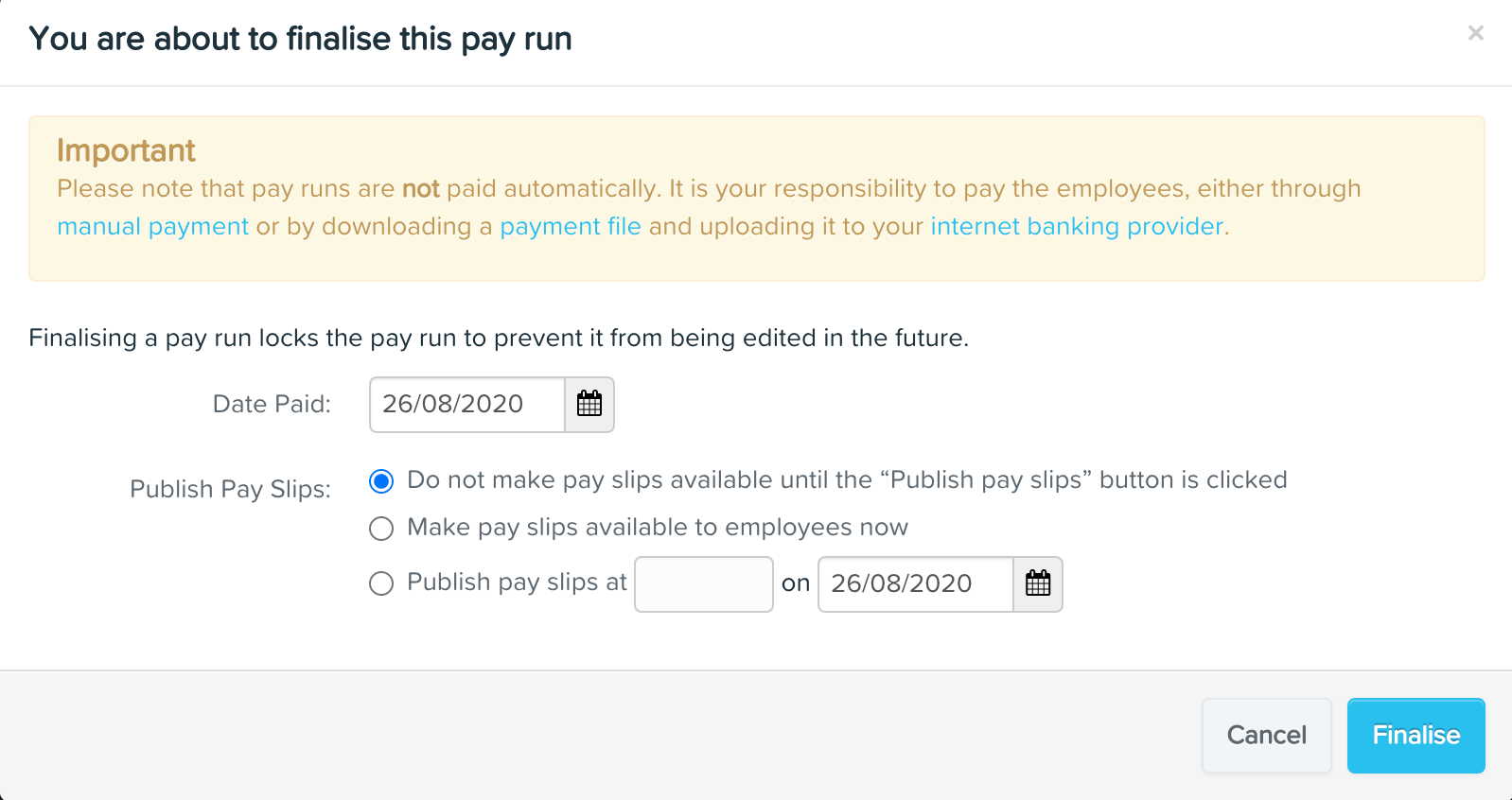
This will open a pop up giving you the final options.
The date that you will pay your staff
the details about publishing payslips
Complete the process by selecting the Finalise button.
As the note says, you must now make manual payments of download the payment file to upload to your internet banking provider. You will need to open the Pay Run Audit Report to access your required pay run payments.
Once the pay run is finalised the pay run will be locked.
Should you need to edit the pay run you can unlock it as long as you have NOT made automated super payments from the pay run.